Published April 23, 2026 · WP Multitool 1.1.20
WP Multitool 1.1.20 ships two new modules: Action Scheduler Optimizer and smarter Image Size Analysis. If you run WooCommerce, the first one solves a problem you probably have right now. The second can cut your upload time in half by killing image sizes WordPress generates but never uses. Plus 9 targeted bug fixes.
Here's what's new and why it matters.
Action Scheduler Optimizer
If your site runs WooCommerce, you have an Action Scheduler table. It grows silently in the background — processing order emails, syncing inventory, firing scheduled hooks. On busy stores, it grows to millions of rows. The table gets slower. Every page request that needs to check the queue takes longer. Your database server strains under the weight of data that should have been cleaned months ago.
Most site owners don't find out until something breaks. A backup fails because the database dump is 4GB. A database query times out. WP-CLI's action-scheduler status returns a number you weren't expecting.
The new Action Scheduler Optimizer module gives you a dashboard for the queue — and the tools to fix it.
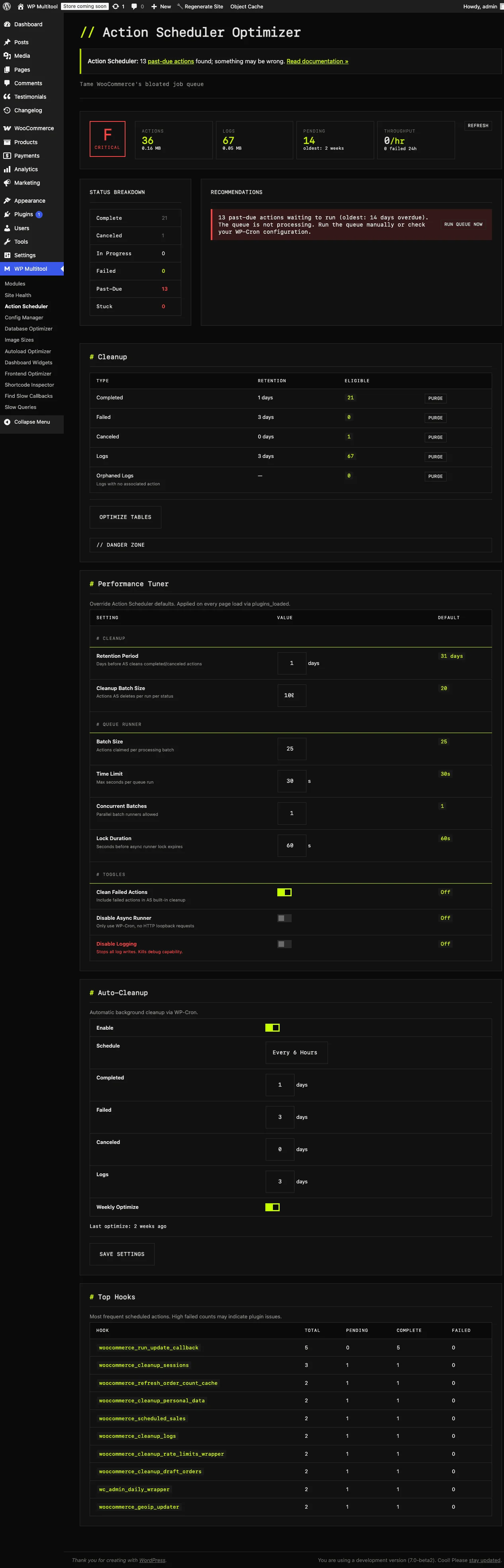
What the module shows you
The dashboard surfaces five numbers immediately: total actions, pending count, failed actions, past-due items, and current processing rate (actions per hour). Below that, a full status breakdown by state — Complete, Cancelled, In Progress, Failed, Past-Due, Stuck — with the oldest action's age for each group.
The recommendations panel flags issues automatically. If you have past-due actions piling up — a classic sign that the queue runner isn't keeping up — it tells you exactly what's happening and suggests a fix.
Cleanup tools
The Cleanup section shows what's eligible for deletion, grouped by type and age. Completed actions, failed actions, logs, orphaned entries — each with counts based on your configured retention periods. You see the counts before you delete anything.
Three cleanup modes:
- Purge — removes old completed and cancelled actions based on your retention settings
- Optimize Tables — runs OPTIMIZE TABLE on Action Scheduler tables to reclaim disk space after bulk deletions
- Nuclear Clean — wipes all non-pending actions. For sites where the queue has gotten completely out of hand. Requires typing a confirmation phrase.
Performance Tuner
The tuner exposes Action Scheduler's runtime settings — the ones that are usually buried in code or require a developer to change. Batch size, time limit, concurrent batches, lock timeout. Each setting shows the current value, the default, and a number field you can adjust directly from the admin.
For most WooCommerce sites, the defaults are fine. For high-volume stores processing thousands of orders per day, being able to increase batch size or concurrent batches without touching code is genuinely useful.
Auto-Cleanup cron
Set it and forget it. Enable auto-cleanup and configure retention periods: how many days to keep completed, failed, cancelled, and log entries. By default the cron runs every 6 hours — configurable to hourly, every 12 hours, or daily. The queue stays manageable without manual intervention.
Top Hooks table
At the bottom of the page: a breakdown of action hooks by total count, pending, complete, and failed. This is how you find which WooCommerce process (or third-party plugin) is generating the most queue load. If one hook has 50,000 entries and everything else has under 100, that's your culprit.
Action Scheduler Optimizer is available in both the Lite edition ($9) and the full Pro version. If you're on WooCommerce and haven't tried WP Multitool yet, the Lite edition ($9) includes this module.
Image Manager: Size Analysis
WordPress generates multiple size variants for every image you upload. Thumbnail, medium, large, medium-large — that's the default set. Themes add their own. Plugins add theirs. WooCommerce adds product image sizes. Page builders add responsive breakpoints.
By the time you've been running a site for a year, you might have 15–20 registered image sizes. Half of them may never appear in any post or template. The other half might be duplicates of each other with different names but identical dimensions.
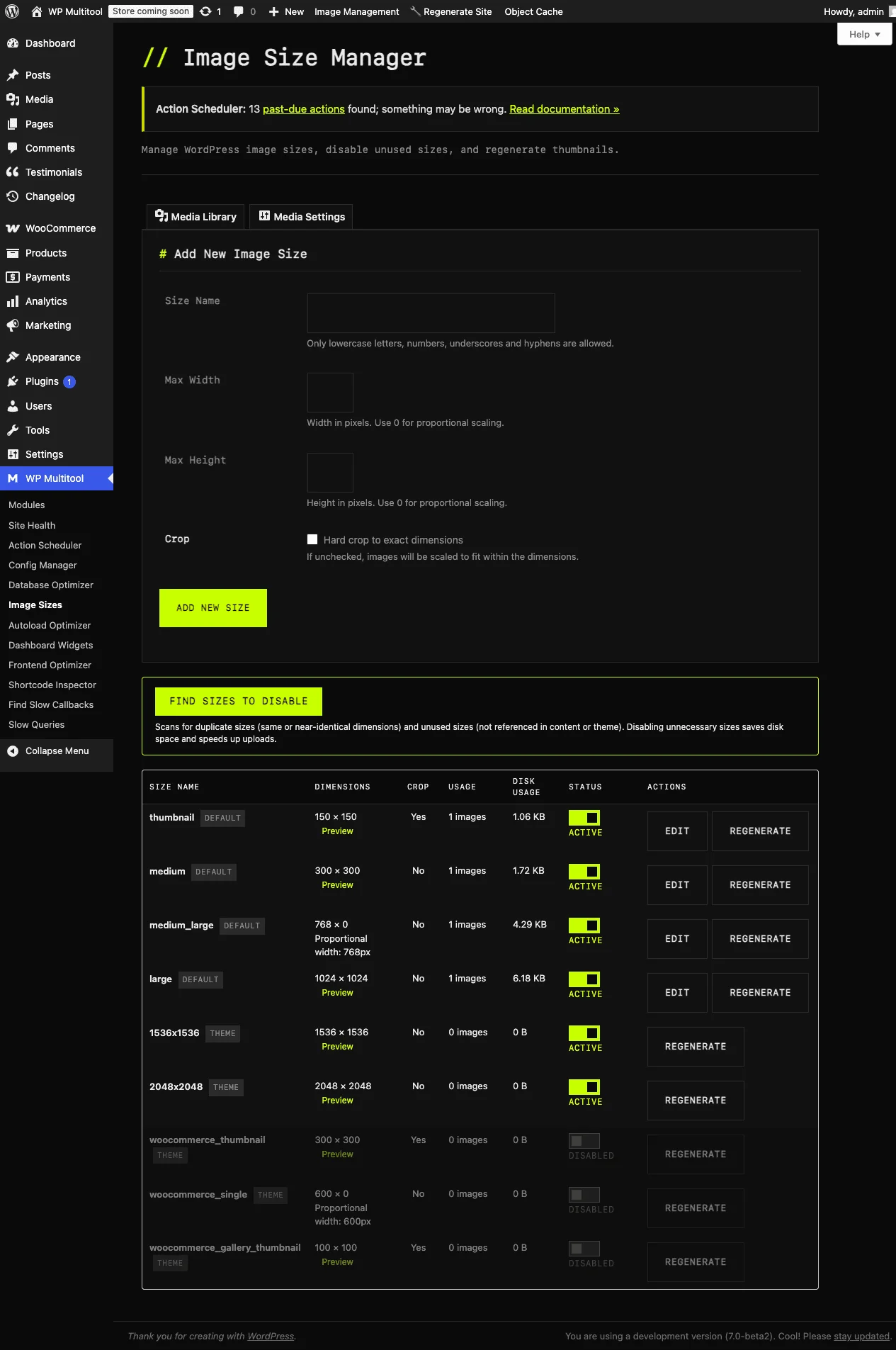
The Image Manager already lets you disable sizes and regenerate thumbnails. Version 1.1.20 adds a smart analysis tool: Find Sizes to Disable.
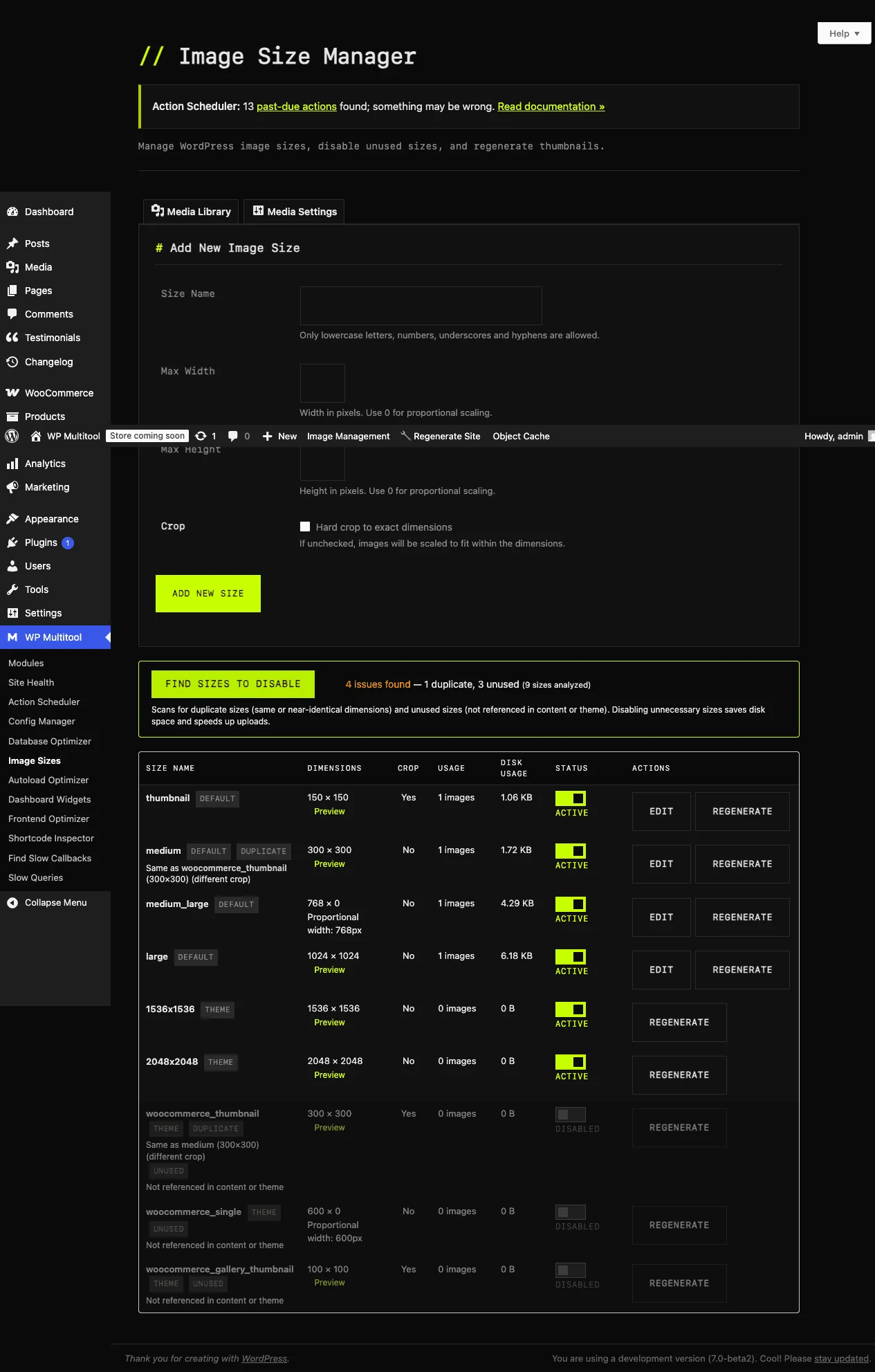
What the analysis does
Click the button and the analyzer scans your registered image sizes against two criteria:
- Duplicates — sizes with identical or near-identical dimensions. The analysis flags them and identifies which is the "original" that other sizes duplicate. Keeping both wastes disk space on every image upload.
- Unused — sizes that have zero actual image files generated, or that don't appear in your content or theme templates. These are registered but never used. Disabling them stops WordPress from generating them on future uploads.
Each flagged size shows why it's flagged (DUPLICATE or UNUSED badge), what it's a duplicate of, and how many image files exist for it. You can disable it directly from the analysis results.
Why this matters
Every active image size means WordPress generates an extra file on every image upload. A site with 20 registered sizes generates 20 files per upload. Cut it to 10 and you halve the upload time, disk usage, and backup size for new images.
The analysis doesn't remove existing files — it prevents new ones from being generated. For cleanup of existing files, the Image Manager's existing disable-and-delete workflow handles that.
9 Bug Fixes
This release includes 9 fixes from a systematic code review across the Action Scheduler Optimizer and Image Manager modules. Some highlights:
- Critical: Action Scheduler stats showed 0 rows — TABLE_ROWS/DATA_LENGTH case mismatch in the analyzer. Fixed.
- Critical: Image size unused scan could miss results on sites with large image libraries — added
group_concat_max_len=10MBbefore the scan query. - Critical: Cleanup with retention set to 0 days previously deleted everything instead of treating 0 as "disabled." Fixed — 0 now means skip that type.
- High: Disk usage scanning used an O(N²) loop per image. Replaced with a single-pass cached result.
Remaining fixes cover a missing capability check, an unbounded UPDATE query in the queue runner, and legacy use of global $screen. No new features — just problems that shouldn't have been there.
How to Update
If you're on the Yearly or Lifetime plan, the download is available in your Polar account. If you bought through the plugin dashboard, the update appears in WordPress → Plugins automatically.
The Lite edition ($9) doesn't include Image Manager with Size Analysis (Pro module), but Action Scheduler Optimizer and the bug fixes are available in Lite. If you've been meaning to upgrade: the $499 lifetime license covers all current and future modules — no annual renewal.
As always: test on staging before updating production. The update takes 30 seconds. The testing should take longer.
Get WP Multitool
- Lite Edition ($9) — includes Action Scheduler Optimizer, Database Optimizer, Frontend Optimizer, and more
- Pro Annual — $199/yr — all 13 modules including Image Manager, Slow Query Analyzer, Config Manager
- Lifetime — $499 one-time — everything, forever, no renewals
Counts above are from the 1.1.20 era; the plugin now ships 19 modules (11 Lite + 8 Pro) - see the pricing page for the current lineup.
Not sure if it's worth it? The 6-plugin problem post explains what WP Multitool replaces and why one tool beats six.