The scenario nobody likes
You're editing a plugin file in wp-admin/plugin-editor.php. You're tired. You forget a semicolon. You hit Update File and the next request white-screens the site. You're locked out of wp-admin. Your only way back in is... wp-admin.
If you've lived through this, you know the feeling.
WordPress has had a fix for this since 5.2. It's called Recovery Mode. Most people don't know it exists, and even when they do, the default flow has an awkward weakness - it emails you a recovery link from the same site that just broke.
This post is about what Recovery Mode actually does, why the default flow is awkward, and what WP Multitool changes about it. I'll also be honest about what it can't fix. There's a sudo gate inside WordPress that we don't bypass on purpose.
What core gives you
When a plugin or theme triggers a fatal error on an admin page, WordPress doesn't just show the "There has been a critical error on this website" page and give up. It also:
- Notes which extension caused the crash.
- Generates a one-time recovery link (a URL with
rm_tokenandrm_keyparams). - Emails that link to the site's admin email.
- When you click the emailed link, WordPress validates the key, drops a recovery cookie, asks you for your password one more time, and finally lets you into a special "Recovery Mode" version of wp-admin where the broken plugin or theme has been paused. It's still installed, just skipped on every page load until you say otherwise.
It's a clever design. The pause means you can keep using the rest of the site. The one-time link means an attacker who scraped the email later can't replay it. The extra password gate means a hijacked browser session alone isn't enough to disable security plugins.
But there's one assumption baked in that bites in practice.
The email is the problem
The recovery link has to leave the server somehow. Core ships it by email. That's where it falls apart:
- Only the "main" admin gets the email. WordPress sends the recovery link to the single
admin_emailoption, not to every administrator on the site. If five people share admin rights, four of them are watching the site go down without a link to fix it. - That admin email is often a ghost address. Set during install years ago. Belongs to a developer who left. Points at a Gmail inbox nobody checks. Points at
info@with a 90% spam ratio. The link expires before anyone notices it arrived. - If your SMTP plugin was the one that crashed, no email goes out at all.
- If your DNS or mail server is having a bad day, no email goes out at all.
- If the email lands in spam, you might miss it during the exact 60 seconds you're trying to recover.
- If you're a freelancer working on a client's site and the admin email is somebody else's address, congratulations, you can't help your client until they forward you a one-time link they don't understand.
None of these are core's fault. They're real failure modes that turn a 30-second fix into a 30-minute scramble, or a much longer outage when the link lands in an inbox nobody opens.
What WP Multitool does differently
If you're already logged in as an admin when the fatal happens, WP Multitool's drop-in (wp-content/fatal-error-handler.php) catches the crash before WordPress emails anything. It:
- Generates the same Recovery Mode URL core would have emailed. Same
rm_tokenandrm_key, same machinery, same security model. - Redirects your browser to it directly. No inbox detour.
- Then steps out of the way and lets core handle the rest - validate key, set cookie, ask for password, drop you into Recovery Mode.
That's the entire change. We don't replace Recovery Mode. We don't reinvent the security gate. We skip the email leg of the chain when it's pointless, because you're literally already at the keyboard.
What you'll actually click
The full flow looks like this from your point of view:
- You're in wp-admin doing something. A fatal error happens.
- Your browser briefly visits
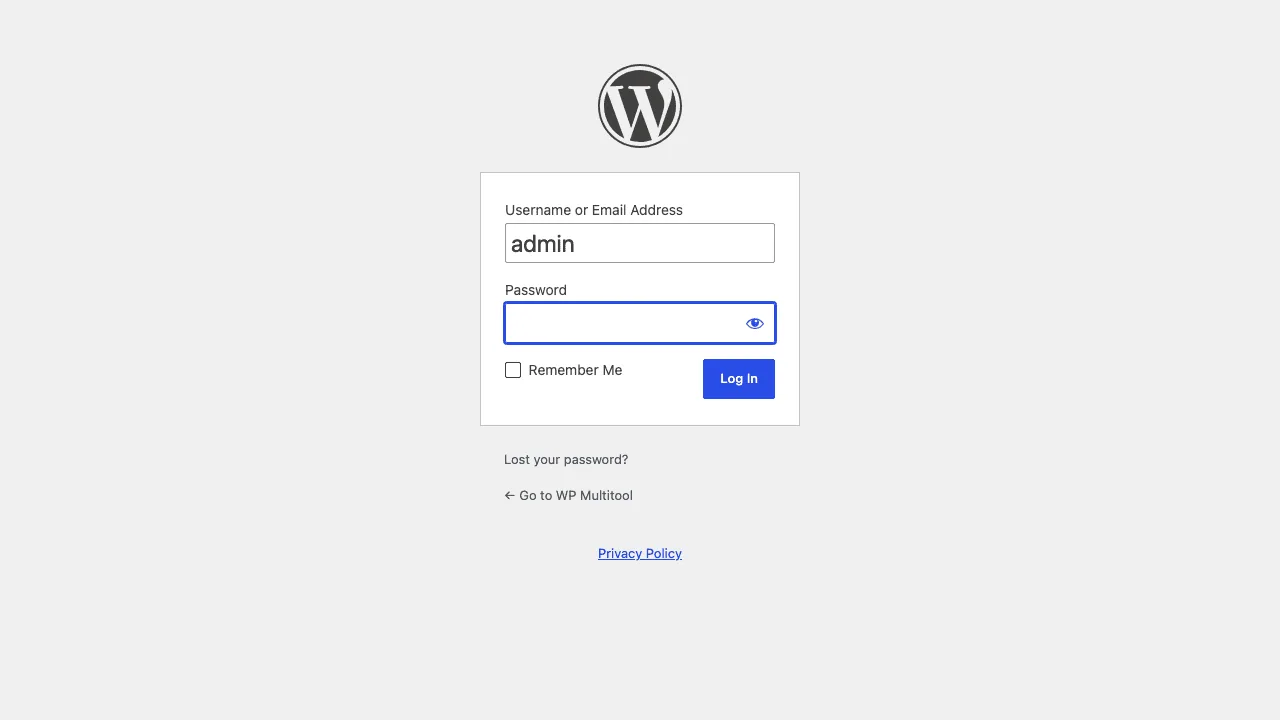
wp-login.php?action=enter_recovery_mode&rm_token=...&rm_key=...and then?action=entered_recovery_mode. You'll see the URL bar flash through these. - You land on a familiar-looking login form with one extra notice at the top - "Recovery Mode Initialized. Please log in to continue."
- You type your password. Yes, the same one you just used. See "the sudo gate" below.
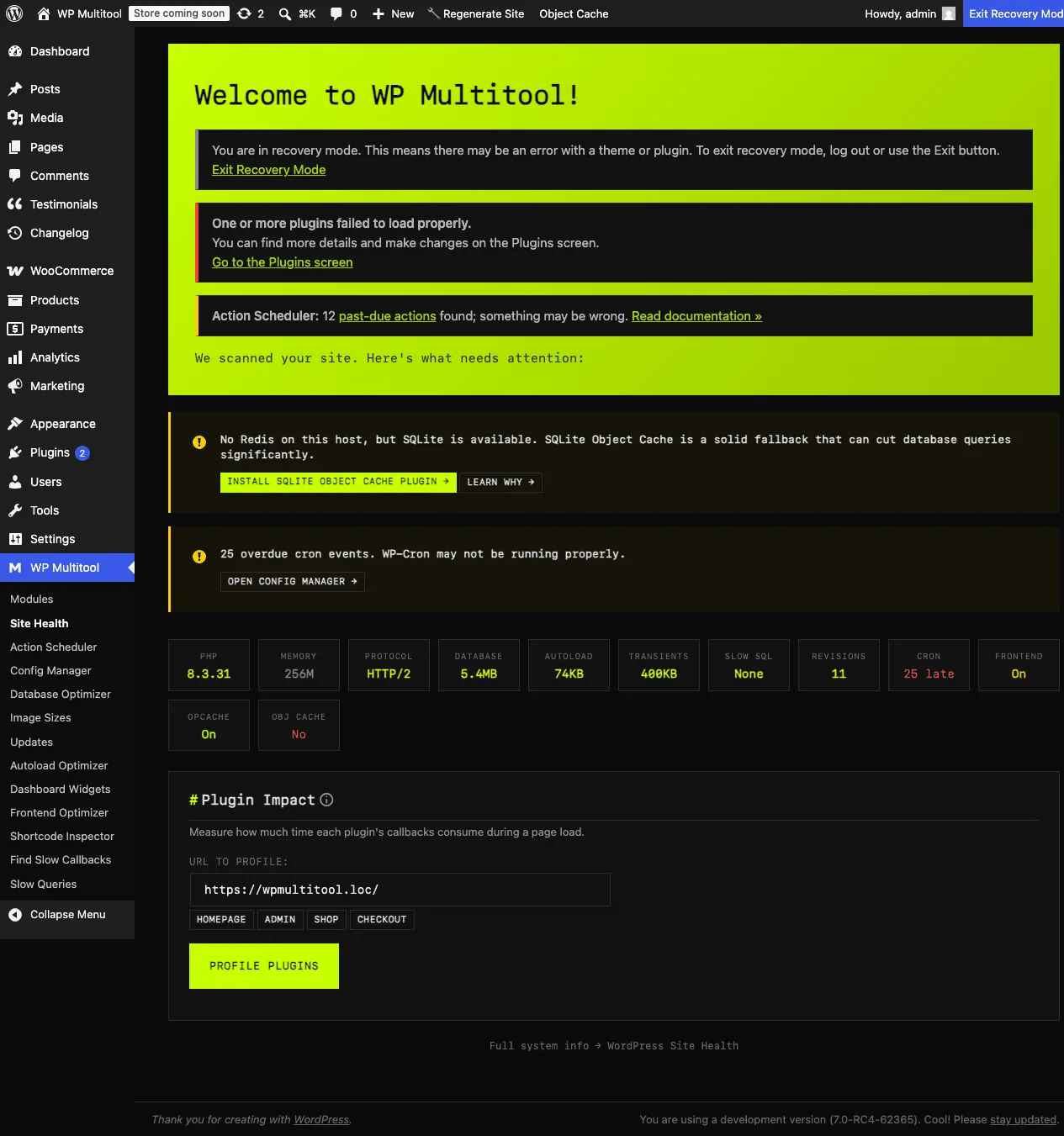
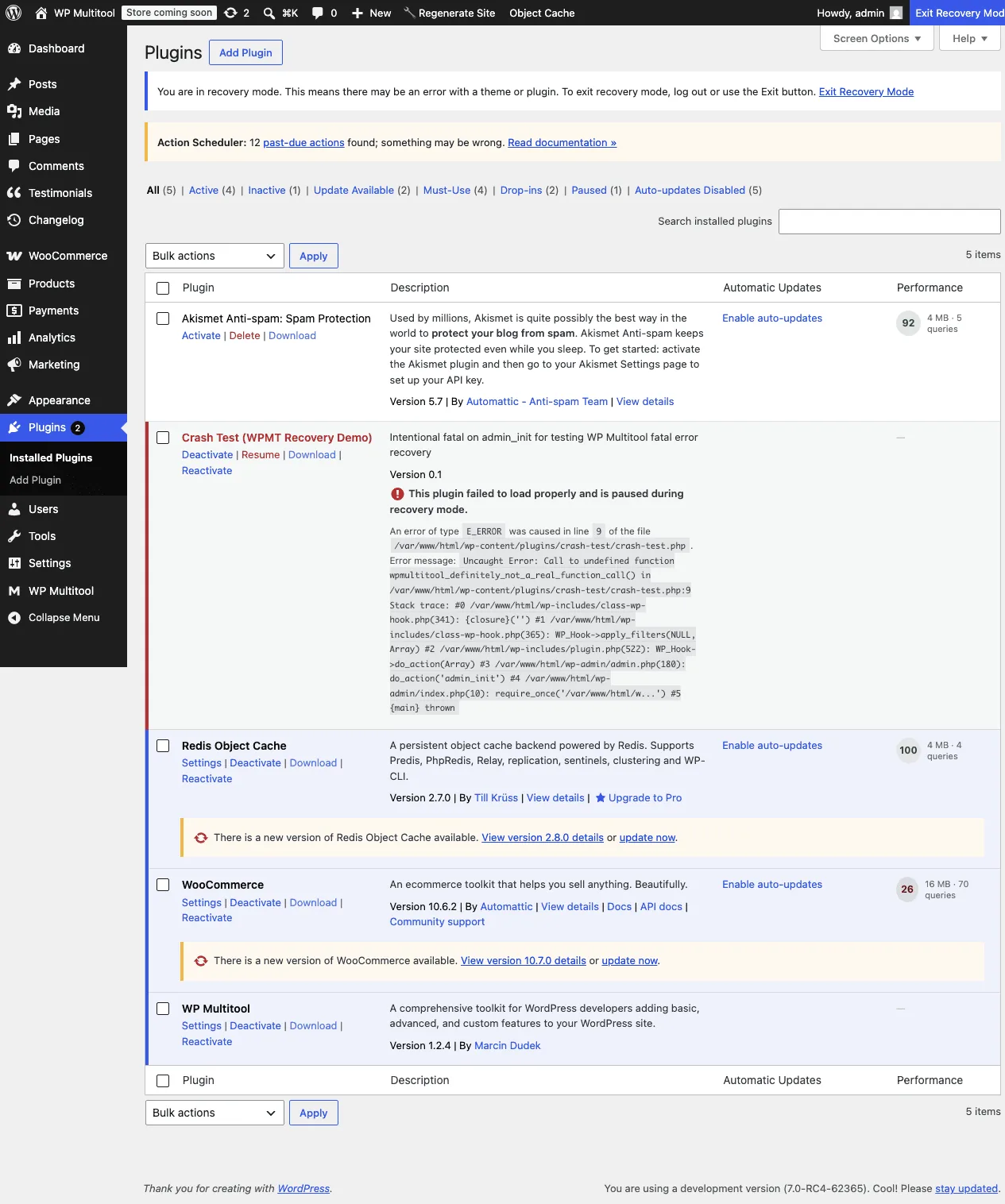
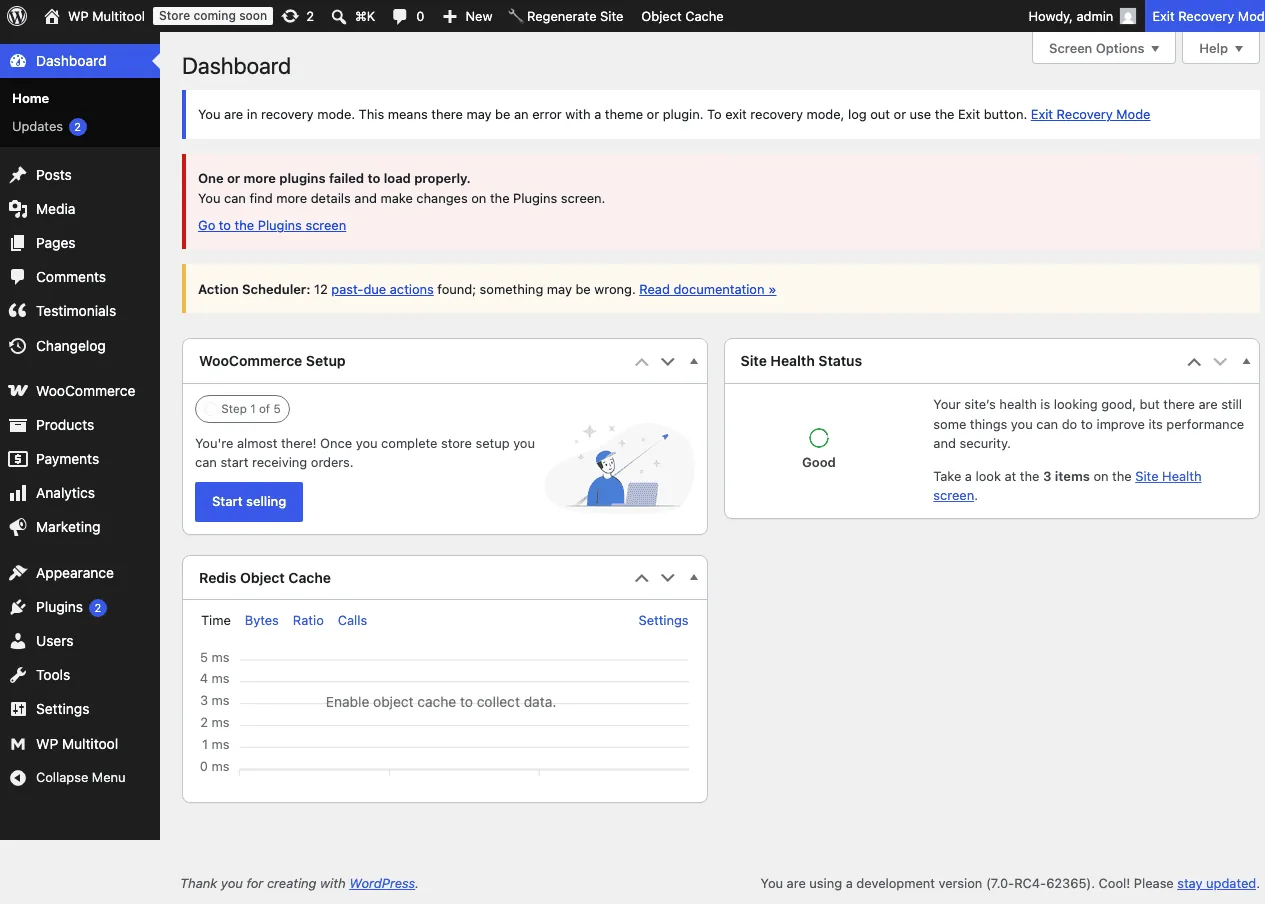
- You're in wp-admin with a yellow Recovery Mode banner. The broken plugin is listed as paused. Fix the code or click Disable. Click Exit Recovery Mode when you're done.
No inbox. No "where's the email." No forwarding it to yourself from another device.
The sudo gate (and why we don't kill it)
You're going to enter your password one more time during this flow. We deliberately left that step in place.
Recovery Mode lets you disable any plugin or theme, see file paths and stack traces, and inspect a half-broken site. It's a privileged context, like sudo. WordPress wants one fresh credential confirmation before granting it. Three good reasons for that:
- Cookie-only sessions aren't enough. If your browser session was hijacked and the attacker triggered a fatal to get into Recovery Mode (where they could disable Wordfence), a password gate stops them.
- The recovery link can leak. Even if you skip the email like we do, the URL might still end up in browser history, a reverse proxy log, a screen share recording. The password requirement makes that URL useless without the credential.
- The recovery key is one-time. Combined with the fresh password entry, an attacker who somehow sniffed the URL mid-flight can't replay it.
So even with our shortcut, you'll see the login form once. If you weren't logged in when the crash happened, you'll see it twice - once to be admin again, once to be sudo-admin. That's a WordPress design floor we don't try to dig under.
What it doesn't do
A few honest caveats:
- It doesn't help logged-out visitors. If a non-admin visitor triggers the fatal first, our drop-in falls through to WordPress's default behavior. Recovery Mode is for the person fixing the site, not the person browsing it.
- It doesn't catch errors in WordPress core files. Only plugin and theme fatals trigger recovery, by core's design, not ours. If you're editing
wp-includes/, you're on your own (and you shouldn't be editing those). - It doesn't replace backups. Recovery Mode pauses the broken extension. It doesn't undo whatever data damage the bad code did before it died. If you're touching anything in production, have a recent backup.
- It doesn't make you immune to bad code. It just makes the consequences cheaper to fix.
And there's a failure mode past all of this: the site is already fully down, you have no admin access, and the recovery email landed in an inbox nobody checks. At that point you're out of prevention and into triage — emergency WordPress repair gets a crashed site diagnosed and back online in about an hour.
How to see it work yourself
Install WP Multitool, make sure it's active, then drop a one-line plugin into wp-content/plugins/:
<?php
/** Plugin Name: Crash Test */
add_action( 'admin_init', function () {
    this_function_does_not_exist();
} );- Activate it from the Plugins page. The next admin pageload will fatal, and you'll be in Recovery Mode about half a second later.
- Disable Crash Test from inside Recovery Mode, then click Exit Recovery Mode. Site is back.
No email was sent. No DNS was consulted. (Don't try this on a production site. Obviously.)
The cleanup companion
Once you've disabled the broken plugin and fixed the code, you'll want to re-activate it. The standard WordPress plugins page makes this two clicks (Deactivate, Activate). Fine for one plugin, annoying when you're iterating on a fix. WP Multitool's Plugin Reactivator module adds a one-click Reactivate link to each row on the plugins page. That's exactly the affordance you want during a "fix, test, fix again" cycle.