Every time you upload one image, WordPress quietly makes five or six more. Thumbnail, medium, medium_large, large - then your theme adds a couple, WooCommerce adds three, and whatever gallery plugin you installed last year adds two you've never looked at.
On a small blog that's fine. On a real site with a few thousand images, it adds up to gigabytes of derivative files. And here's the part that bugs me - a lot of those sizes are duplicates of each other (640x640 vs 600x600, who can tell?), or they were registered by a plugin you deleted months ago and nothing references them anymore.
You're paying for that storage. You're backing it up. You're syncing it. For files nothing ever loads.
What we changed
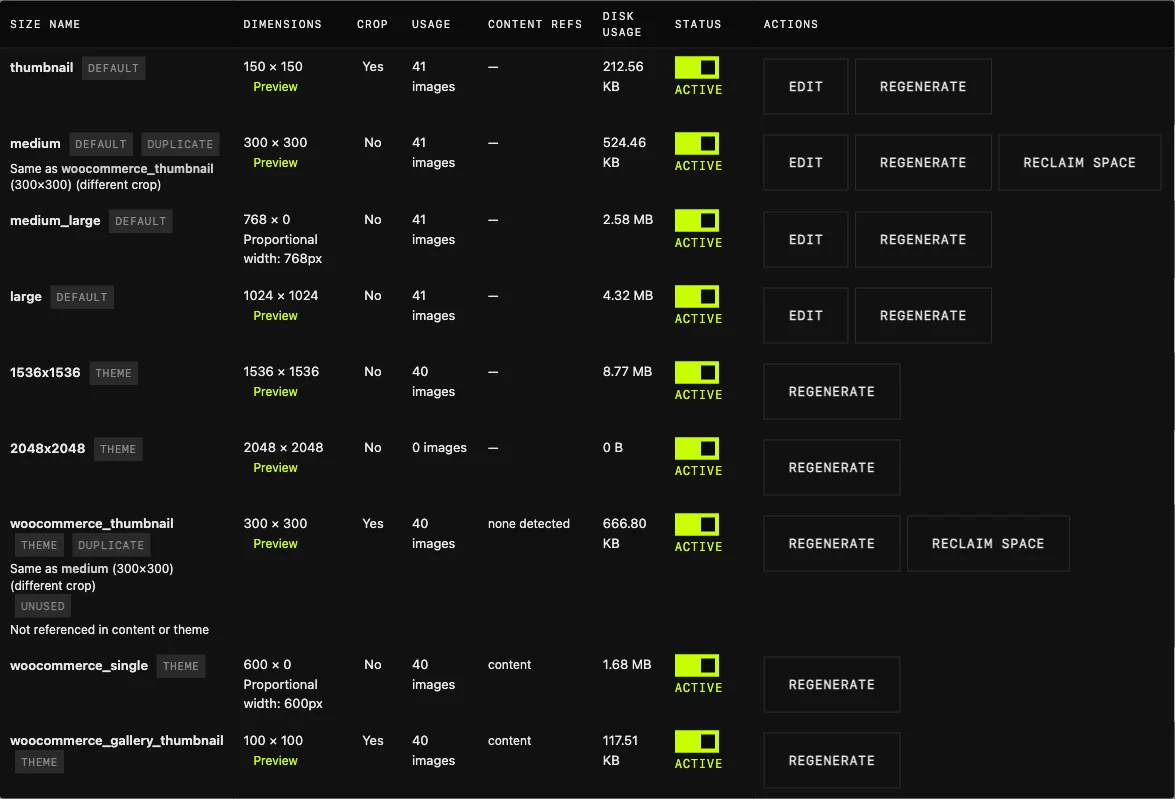
WP Multitool's Image Manager already had an analyzer - "Find Sizes to Disable" - that scanned your registered sizes and flagged the duplicates and the unused ones. Useful, but it only told you. You still had to go clean up by hand.
Now it actually does the work. Run the analyzer and you get a "Reclaim space" button on every flagged size. There's a per-row version, and a bulk one for unused sizes. Click it and it walks your whole media library, deletes the generated files for that size, and tells you how many megabytes it freed.
That's the whole point - turn "here's what's wasting space" into "ok, it's gone."

The safety stuff, because this is your media library
I'm not going to ship a feature that can wreck someone's images, so let me be clear about what it touches.
It only deletes the intermediate files - the image-640x480.webp derivatives. Your original upload is never touched. The code literally can't reach the original; it only ever resolves the size files in the attachment metadata.
It's reversible. Every size keeps its "Regenerate" button. Reclaimed something you actually needed? One click and WordPress rebuilds it from the original. No backup restore, no drama.
And when you reclaim a size, it also disables future generation of that size. Otherwise you'd delete the files today and the next upload would recreate them tomorrow. Reclaiming and disabling go together.
Knowing what's actually used
The hard part of all this isn't deleting files. It's being sure a size is really unused before you nuke it.
So the detection got smarter. It now scans your post content (classic markup and Gutenberg's sizeSlug), Elementor's _elementor_data, media image widgets, and your active theme's PHP files. There's a new "Content refs" column that tells you where each size shows up - content, Elementor, widget, theme. If a size is referenced, you'll see it, and you won't disable it by accident.
If nothing references it, the column says "none detected" and the tooltip says to verify before disabling. Not "safe to delete." Verify. There's a difference, and I'll get to why in a second.
What it won't do
I'd rather tell you the limits than have you find them the hard way.
Detection has blind spots. If your images are served from an edge cache like Cloudflare, those requests never hit your origin, so I can't see them in logs. If a size is used in some dynamic context - a REST endpoint, an OG image generated on the fly, an email template - a content scan won't catch it. Deeply nested page-builder JSON can hide references too.
That's why the UI never says "safe to delete." It says "no reference found, verify before disabling." You know your site. The tool narrows it down; you make the call. And since everything's reversible, the cost of being wrong is one click.
It also doesn't recompress your images or convert anything to WebP/AVIF. That's a different job. This is about sizes you don't need at all, not squeezing the ones you keep.
Built for the servers people actually run
A lot of WordPress runs on cheap shared hosting with a tight max_execution_time. So the scan is on-demand only - it never runs on page load, only when you click the button. It reads the database row by row instead of pulling everything into memory, stops scanning a size the moment it finds a reference, and has a hard cap on how many rows it'll touch. Hit a site big enough to reach that cap and it tells you the results might be incomplete instead of timing out and giving you nothing.
I tested it on a site with 1000 images and 1200 posts. The scan came back in under a second. The interesting bit - the reference scanning was basically free; the time goes into checking actual disk usage across the library. Good to know for what we optimize next.
Try it
All of this shipped in WP Multitool 1.3.0. If you've got a media library that's grown over a few years, run the analyzer once. I think most people will be surprised how much is sitting there doing nothing. Don't have it yet? Grab WP Multitool and point it at your worst offender of a site.
Next up I want to push the usage detection further - reading server access logs to see which sizes actually get requested, not just which ones are referenced in content. That closes the edge-cache gap. More on that when it's working.