New in WP Multitool 1.1.19 - Plugin Performance Score is the newest module in WP Multitool. It adds real benchmark data to your WordPress Plugins page so you can see exactly which plugins are the heaviest. Here's what it does and why it matters.
Every WordPress developer has had this moment
The site is slow, you open Query Monitor, and you see 180 database queries. But which plugin is responsible for most of them?
Query Monitor tells you what happened during a single page load. It's a debugger - and QM4 just made that debugger a lot better with a new timeline view and client-side rendering. But it still doesn't answer the fundamental question: is this plugin heavy in general, or just heavy on this particular page?
That's two different problems. And nobody was solving the first one with real data.
The problem with guessing
When I help people audit their plugin stacks, the conversation usually goes like this: "I think Elementor is heavy." "I heard Jetpack is a resource hog." "Someone on Reddit said WooCommerce adds 70 queries."
Some of those are right. Some are outdated. And most people don't have time to benchmark every plugin themselves. They just install stuff and hope for the best.
What if you could see each plugin's performance impact right on the Plugins page? Not based on opinions - based on actual measurements.
Plugin Performance Score
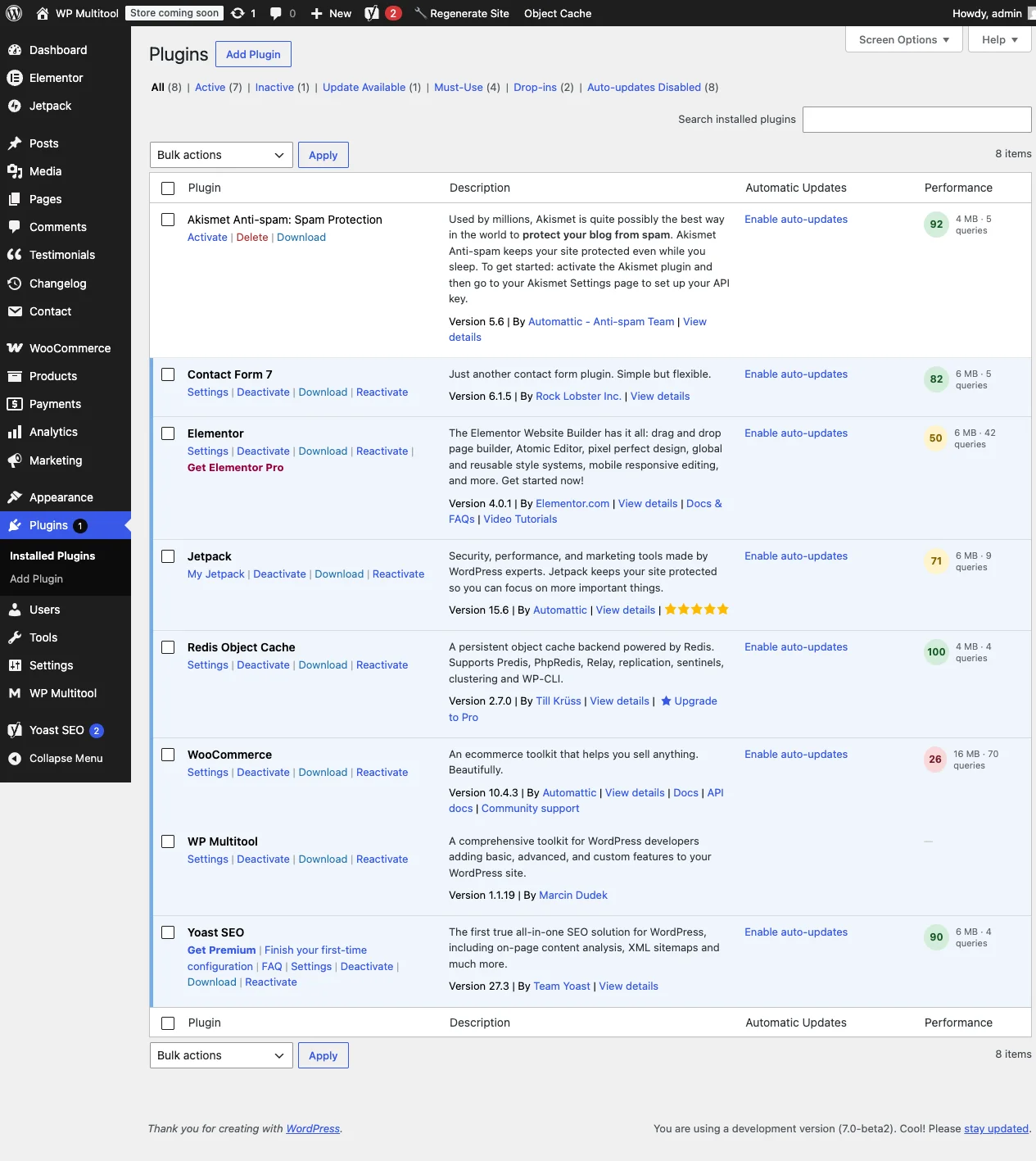
That's what the new module in WP Multitool 1.1.19 does. It adds a Performance column to your WordPress Plugins page showing three things for each installed plugin:
- A score from 0 to 100
- PHP memory usage
- Number of database queries
The data comes from makewpfast.com, where we benchmark plugins in isolated Docker containers. No caching, no interference from other plugins, just a clean WordPress install with one plugin active at a time. We measure memory and queries, then calculate a score.
Here's what it looks like for some plugins you probably have installed:
| Plugin | Score | Memory | Queries |
|---|---|---|---|
| Akismet | 92 | 4 MB | 5 |
| Contact Form 7 | 82 | 6 MB | 5 |
| Jetpack | 71 | 6 MB | 9 |
| Elementor | 50 | 6 MB | 42 |
| WooCommerce | 26 | 16 MB | 70 |
No surprises for the extremes - WooCommerce is heavy, Akismet is light. But the middle is interesting. Jetpack scores lower than Contact Form 7 even though both use 6 MB of memory, because Jetpack runs nearly twice the queries. The score reflects that.
How scoring works
I didn't want the score to be some black box number. It's a formula you can verify yourself.
The baseline is a clean WordPress install - about 4 MB memory and 4 database queries. Everything above that is overhead. The formula uses a logarithmic scale, which means the first 10 extra queries hurt your score more than going from 100 to 110. That makes sense intuitively - if your plugin adds 10 queries to a minimal site, that's a big deal. If it adds 10 more on top of 100, that's noise.
Two important properties: the score is deterministic (same memory and queries always produce the same number), and it doesn't change when we add new plugins to the database. If a future plugin uses 50 MB and 300 queries, it'll score 0 - but WooCommerce stays at 26. No one else's score shifts.
We have data for about 5,000 plugins. If yours isn't in there, you'll see a dash instead of a score. We're working on expanding coverage.
What to do with this information
The score isn't telling you to uninstall WooCommerce. If you run a store, you need it. But it does tell you where to focus your optimization effort.
If you see a plugin scoring below 50 and you're not sure you need it - that's a conversation worth having. If you see three plugins in the 60-70 range doing similar things, maybe it's time to consolidate.
And if your site has autoload bloat, the heaviest plugins are usually the biggest contributors. Now you can see that connection at a glance instead of guessing.
The module loads the benchmark data from a static file bundled with the plugin. No external API calls, no performance impact on your site. It's about 220 KB and gets cached by PHP's opcache after the first load. The column only appears on the Plugins page - it doesn't touch your frontend or any other admin page.
Try it
Plugin Performance Score ships with WP Multitool 1.1.19, enabled by default. Install the plugin, go to your Plugins page, and the Performance column is there.
Click any score badge to see the full benchmark report on makewpfast.com.
This is one of 14 modules included. Get WP Multitool - $199/year