The problems that don't show up anywhere
The site loads. Nothing is on fire. And yet OPcache is thrashing because its key table is full, so PHP recompiles on half your requests. There's an object-cache.php drop-in still pointing at a Redis server that died three months ago, quietly erroring on every page. The homepage misses the page cache on every single hit and nobody noticed, because it still renders, just three seconds slower than it should. Most of what slows a WordPress site down is invisible from the dashboard.
I fix real client sites for a living, and the same handful of problems come up again and again. They're never in the obvious place. You find them by SSHing in, reading opcache_get_status() by hand, curling your own homepage to read the cache header, squinting at wp_options, poking Redis with redis-cli. Every time. So I turned that checklist into a module. It's called Site Doctor.
What the WordPress Site Doctor scan does
Site Doctor is an on-demand WordPress scan that ranks what's slowing the site down - configuration, Redis object-cache health, a page-cache probe, database bloat, and on Pro autoload and captured slow queries - then links every finding to the module that fixes it. It runs locally when you ask it to, never on a normal page load.
You click Find what's slow in wp-admin, or run wp multitool doctor from the command line, and it scans the whole site rather than one request. Findings come back ranked worst first, each with the fix. The scan is read-only, it fires once when you ask, and it caches the result. New installs land on Site Doctor right after activation, because "where do I start?" is the actual question.
What it looks at
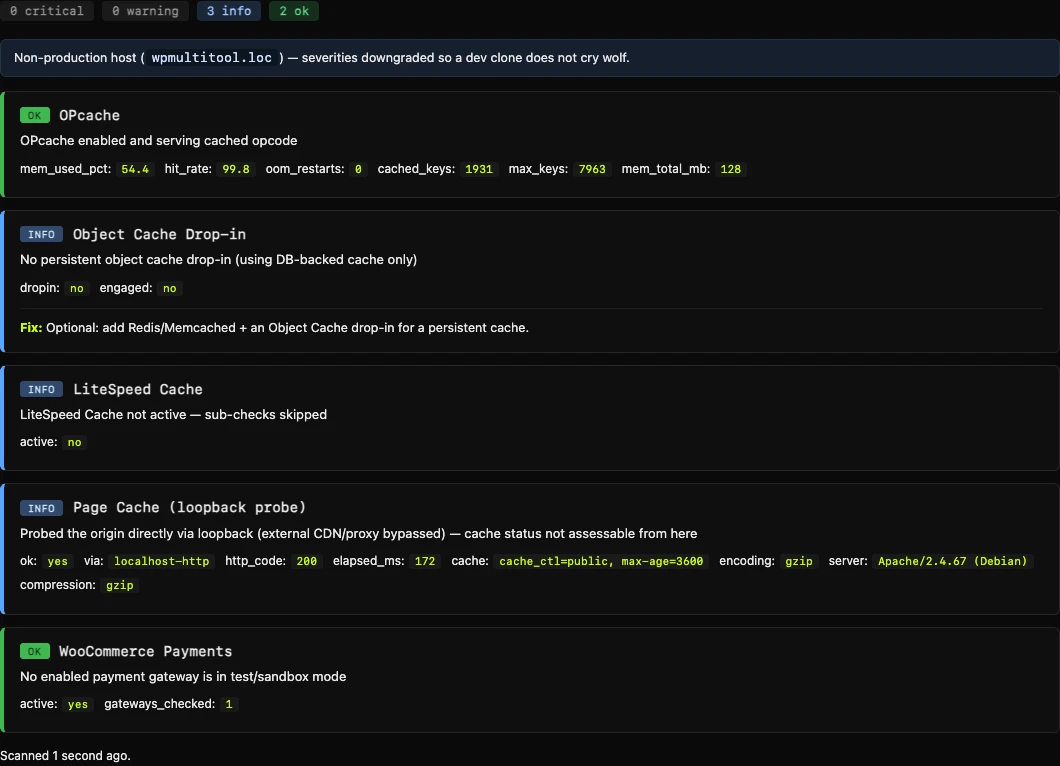
The configuration checks are Site Doctor's own, and they run on every edition:
- OPcache health. Not simply on or off. It catches the states that actually hurt: out-of-memory restarts, a full key table forcing recompiles, a populated cache with a low hit rate. When something's wrong it hands you a sized
php.inisnippet calculated from your live numbers, not generic advice. - The object-cache drop-in. A present-but-dead drop-in (the file is there, the backend isn't answering) is flagged critical, because that's the silent killer: it can error on every request while the site still limps along. It identifies the vendor and tells you the safe move.
- Redis, past the word "Connected". 21 separate checks when Redis is in play. More on that below.
- Page caching, via one real loopback request. It fires a single request at your own homepage and reads the cache header. HIT or MISS, LiteSpeed or Cloudflare or Varnish or Kinsta. A cache layer that's present but missing on every hit is worth knowing about.
- LiteSpeed misconfiguration detection for sites running LSCWP, the kind of thing that silently stops LiteSpeed from caching even though the plugin is active.
- Overlapping optimizers. Two plugins both stripping emoji scripts, or both removing jQuery Migrate, is a common way to do the same work twice and still miss the thing that's actually slow. Site Doctor compares Frontend Optimizer against the other optimizer plugins on the site. It does not do page cache, so two cache plugins cannot clash with it.
- WooCommerce payment gateways stuck in test mode. A live shop with a gateway still in sandbox can't actually take money. It catches the enabled-but-test-mode gateways (including the Przelewy24 wizard bug that saves a localized label instead of "production") so you find out before a customer does.
On top of its own checks, the scan pulls findings from other modules that are installed. Lite already has database bloat (revisions, expired transients) and Action Scheduler junk left by WooCommerce and friends. Pro also pulls autoload burden and captured slow queries. When a source isn't there, the scan says so by name in the UI, so an empty list of actions never gets mistaken for a clean bill of health.
Redis, past "Connected"
The Redis panel in most tools tells you one thing: connected, yes or no. That answers almost nothing. A connected Redis can be evicting your cache keys within seconds under an LRU policy, sharing a database with another site, refusing values over a size limit, running against a replica that won't take writes, or costing you more in round trips than it saves in queries.
Site Doctor runs 21 Redis checks: reachability, topology, eviction policy, memory headroom, unbounded memory, eviction rate, hit rate, key isolation, value limit, ignored groups, global groups, volatile groups, unflushable groups, key salt, group config, replica role, persistence, connection churn, flush storms, fragmentation, and round-trip tax. Missing information is reported as "unknown", never as "ok".
I wrote up how a completely healthy-looking Redis came back nearly four times slower than no object cache at all in Connected Is Not Working, with the numbers.
Every finding comes with a fix
I have a rule for Site Doctor: a check isn't allowed to ship unless it comes with a fix. Finding a problem and shrugging is what most "health check" tools do, and it's useless when you're tired and just want the site fast again.
So every finding carries remediation. Not "consider tuning your cache", but the actual change to make, with the real values. OPcache hands you a sized php.ini snippet calculated from your live numbers. A gateway in test mode tells you the exact setting to flip. Anything a module can already fix links straight into that module.
There's also a safe optimize action for the boring cleanups, and it stays deliberately narrow. On Lite it clears expired transients and old completed Action Scheduler rows. On Pro it also clears autoload leftovers from plugins that aren't active anymore, because that finding needs the Autoloader Optimizer to exist in the first place. Everything else stays your call. I don't want a plugin flipping a payment gateway or rewriting php.ini behind your back.
One more thing I care about: it doesn't cry wolf on your laptop. Site Doctor has a staging-guard that quietly downgrades severities on dev hosts (.loc, .local, staging. subdomains, and so on). A dead object cache on your local clone is expected. On production it's critical. Same check, different stakes, and the tool knows the difference.
Lite and Pro see different amounts
Site Doctor itself ships in both editions. Lite ($9) runs all of its own checks - OPcache, object cache, the 21 Redis checks, the page-cache probe, LiteSpeed, optimizer overlaps, Woo gateways - plus database bloat and Action Scheduler findings, and its safe optimize covers expired transients and finished background jobs. Pro adds two more scan sources: autoload and captured slow queries, because those findings come from the Autoloader Optimizer and the Slow Query Analyzer, which are Pro modules. Lite names both as skipped when it can't read them, rather than pretending the site is clean.
It doesn't replace Site Health or Query Monitor
Site Health checks WordPress against WordPress. Query Monitor is the best thing there is for taking one request apart, and I still keep it installed. Neither of them tells you that your Redis eviction policy is throwing away the cache you're paying for, or that your homepage misses the page cache on every hit, or which inactive plugins left megabytes of autoloaded options behind.
If you want to debug one specific page, start with Query Monitor. If the question is "the whole backend is slow and I don't know where to look", that's the one Site Doctor answers.
And when wp-admin won't even load
Site Doctor assumes you can reach the dashboard. Sometimes you can't. Usually the dashboard ran out of memory, because it's the heaviest page on the site.
The number-one cause of that is a bloated autoload set, the options WordPress loads into memory on every request. Plugins you deactivated months ago leave megabytes of it behind. Three commands from the Autoloader Optimizer (Pro), in the order you'd use them:
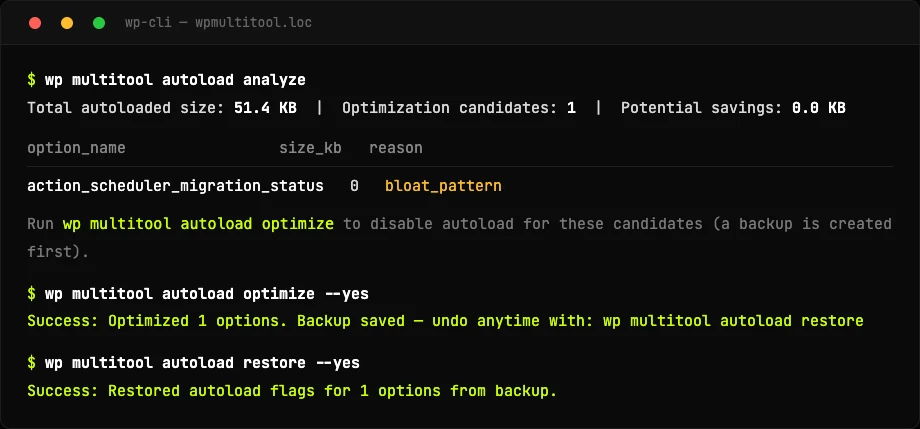
wp multitool autoload analyze classifies every autoloaded option and flags the safe-to-trim ones, specifically the leftovers from plugins that aren't active anymore. optimize disables autoload for those, after writing a backup. restore puts every flag back exactly as it was and reports the exact count, so if it didn't help you're one command from where you started. There's also wp multitool modules to enable and disable modules from the command line when you can't reach the toggles, and wp multitool doctor to run the whole scan without a browser at all.
About the autoload win, because the internet oversells it: it mostly moves TTFB on sites with a big autoload set and no persistent object cache. On Redis or Memcached the blob is already cached and the gain shrinks to memory. On a query-bound site the real problem is usually the queries.
Catch an N+1 query storm in one page load
The classic WordPress performance killer is the N+1 query: a plugin runs the same query once per item in a loop, so a page with 50 products fires 50 near-identical queries instead of one. Finding these usually means leaving query logging on and digging, which you don't want running on a live site.
The Slow Query Analyzer (Pro) has a one-shot probe for it. wp multitool slow-queries probe fires a single request at your front end with query logging on for that one request only, gated behind a one-time token, then switches logging straight back off. That capture stays in a transient for the probe run. It does not write the persistent slow-query log that Site Doctor reads.
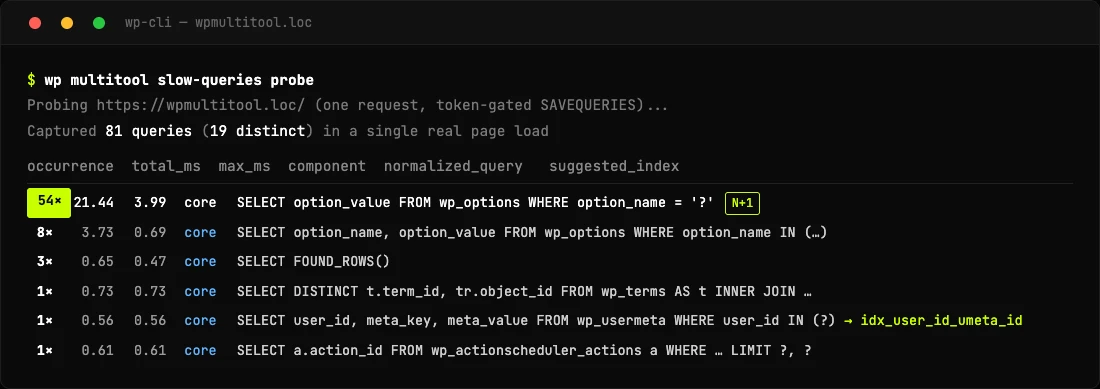
That 54× in the first column is the whole point. One query running 54 times on a single page load is an N+1 waving its arms at you, and where an index would help, the probe hands you the exact CREATE INDEX statement. Queries the analyzer has already logged, with an index waiting, show up as a ranked finding in Site Doctor on Pro. The probe is a different tool.
The safety net that can't be switched off by accident
One hardening note. WP Multitool's Fatal Error Recovery, the thing that gets you back into a white-screened site, is a deliberate always-on safety net. It isn't owned by any toggleable module, so disabling modules (from the dashboard or from the CLI) can never strip a site of its crash recovery. The one feature you'd most want during an outage is the one you can't turn off by mistake.
The point
Site Doctor is the part of WP Multitool I'm most happy with, because it's the checklist I actually run on real sites, turned into one button. Most WordPress tooling tells you a site is "healthy" when it loads. The interesting problems are the ones that don't announce themselves: the dead cache, the thrashing opcode cache, the Redis that evicts everything you put in it, the query fired fifty times.
WP Multitool is paid and it isn't on wordpress.org. Lite is $9 and includes the Site Doctor scan; Pro adds the autoload and slow-query sources plus the rest of the Pro modules. If you want a free taste first, the scanner on this site checks TTFB and compression from the outside - it doesn't run Site Doctor, which needs to be inside the install to see any of this. The short version of what it does is on the Site Doctor page. Pricing is on the pricing page, and the whole check list, the Redis reference and the CLI usage live in the Site Doctor docs.
Last updated 8 September 2026.