Why This Is Manual
This page used to cover updating Lite by hand. It now covers reinstalling, because there is nothing left to update to: Lite is frozen at 1.9.15, and the zip in your Polar account is the last build there will be - no further updates, including security updates. Reinstalling puts that same file back on the site after a bad migration, a broken edit, or a fresh server. You do it the way you'd install any plugin from a zip: download the file from your Polar account, then upload it over the old copy. WordPress replaces the files, keeps the plugin active, and leaves every setting exactly where it was. Frozen means the file stops changing - it does not mean your install is broken or your purchase is void. Lite has no license key, so nothing deactivates it, and the copy you already run keeps working as-is.
Step by Step
-
Check the version you are on
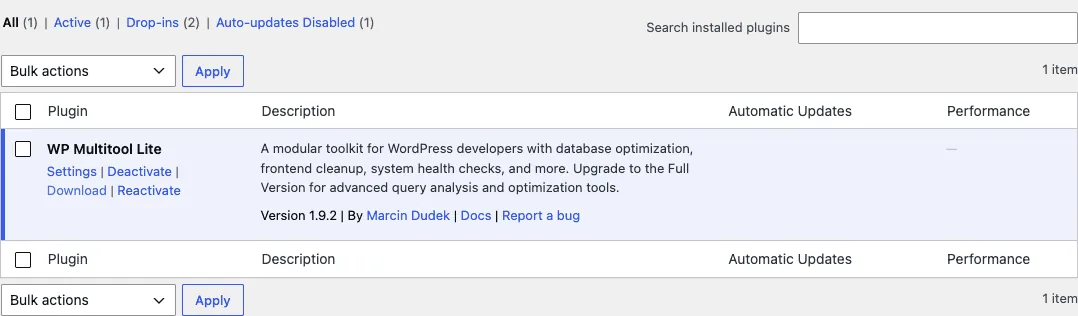
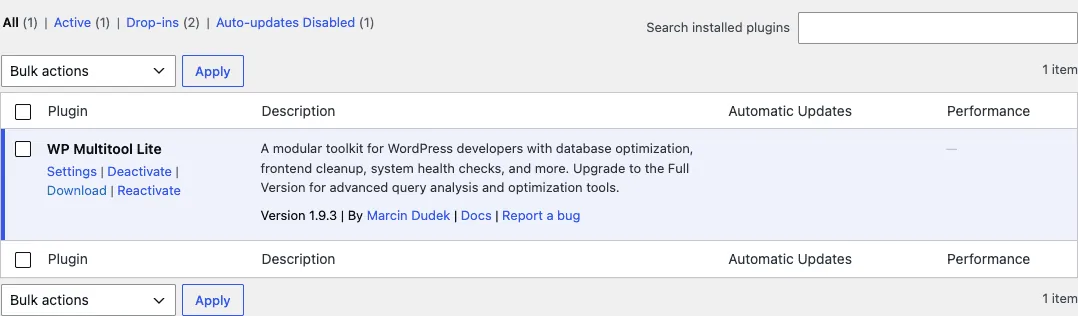
Go to Plugins in wp-admin and read the version under WP Multitool Lite. Write it down. If the plugin is working, there is nothing to reinstall - 1.9.15 is the last build and it does not change. If you are on an older build or the install is broken, keep going.
-
Open your account and sign in
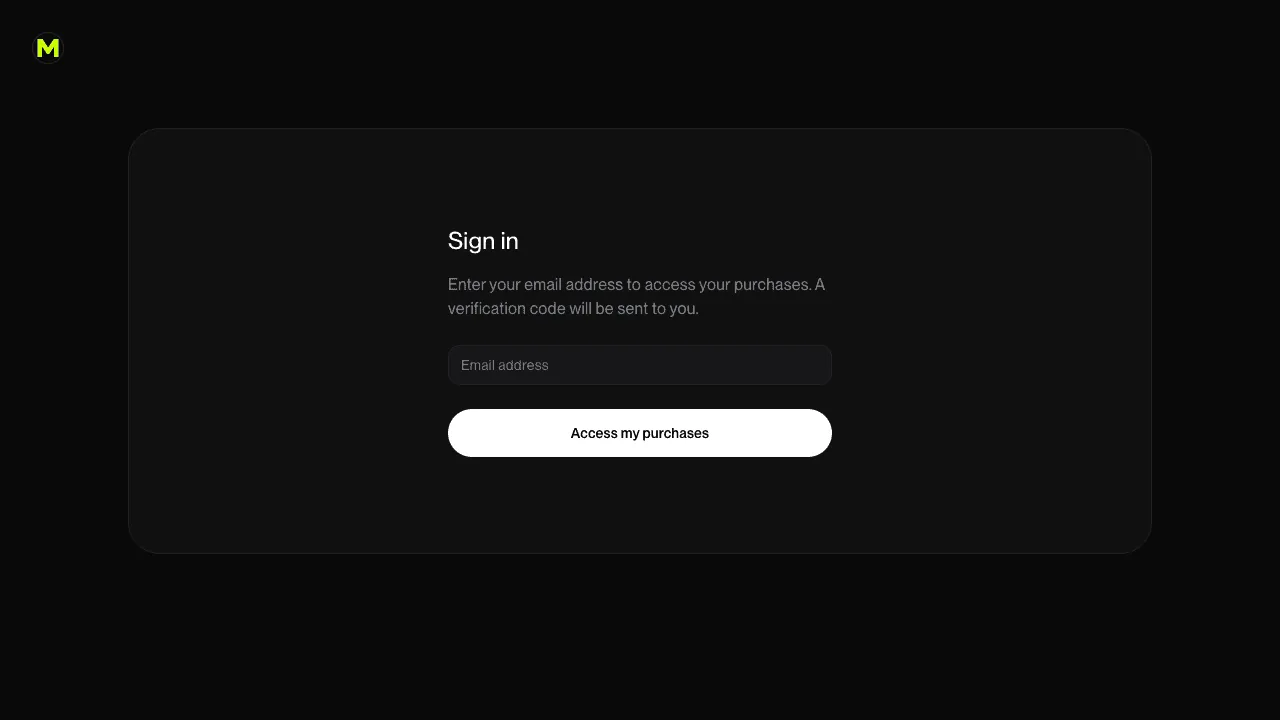
Go to polar.sh/we-got-this/portal and enter the email address you bought Lite with. There's no password - Polar emails you a six-character verification code instead. Use the same address you used at checkout, otherwise the portal won't find your purchase.
-
Enter the verification code
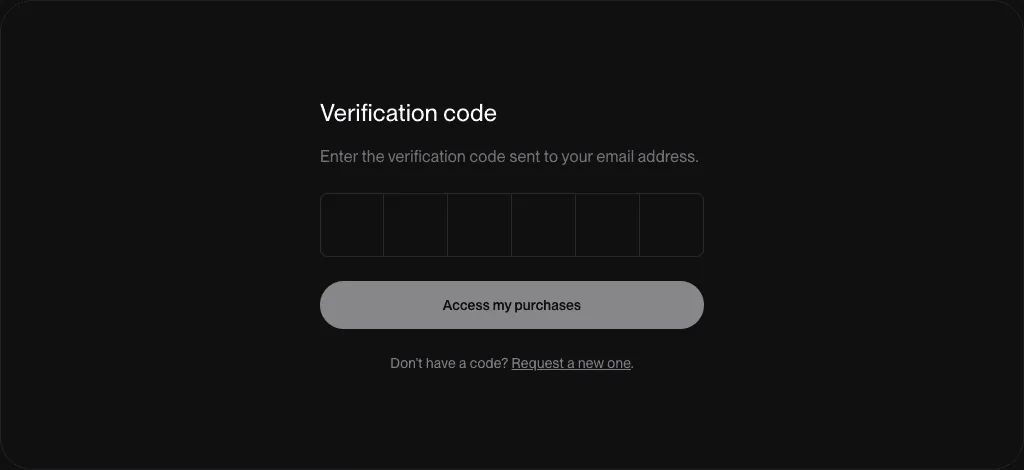
Paste the six characters from the email and click "Access my purchases". The code is short-lived, so if it stops working, click "Request a new one" and check your inbox again. Check spam if nothing arrives within a minute.
-
Download the Lite zip
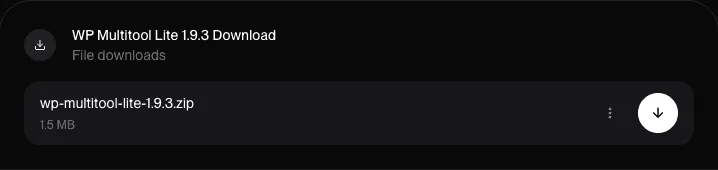
On the Overview page, scroll to Benefit Grants. You'll see an entry named "WP Multitool Lite <version> Download" with the zip under it. Click the download arrow on the right. The version in that title is the frozen last build - Lite gets no further updates, so it will not change again.
-
Upload the zip in wp-admin
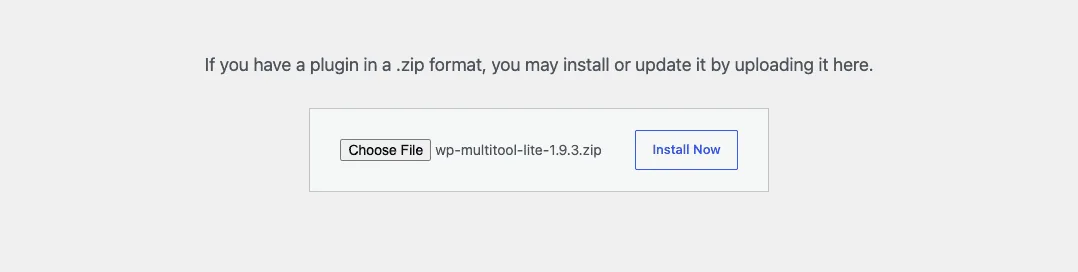
Go to Plugins > Add Plugin in wp-admin - on WordPress older than 6.4 that menu item is called "Add New" - then click "Upload Plugin" at the top of the page. Click "Choose File", pick the zip you downloaded, then click "Install Now". Don't unzip it first, and don't delete the old copy of the plugin. Uploading over the top leaves it active and in place. Deleting means reinstalling and reactivating for no reason.
-
Replace the current version
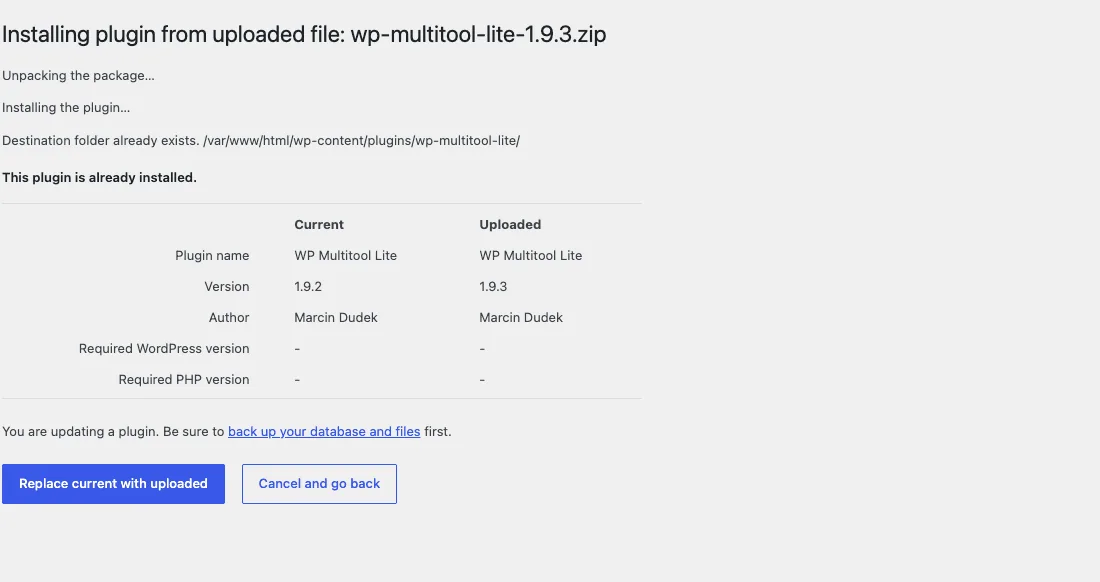
WordPress notices the plugin is already installed and shows a comparison table with the version you have and the version you uploaded. On a reinstall the numbers match, and on an older build the uploaded one is higher - either is expected. Click "Replace current with uploaded".
-
Wait for the success message
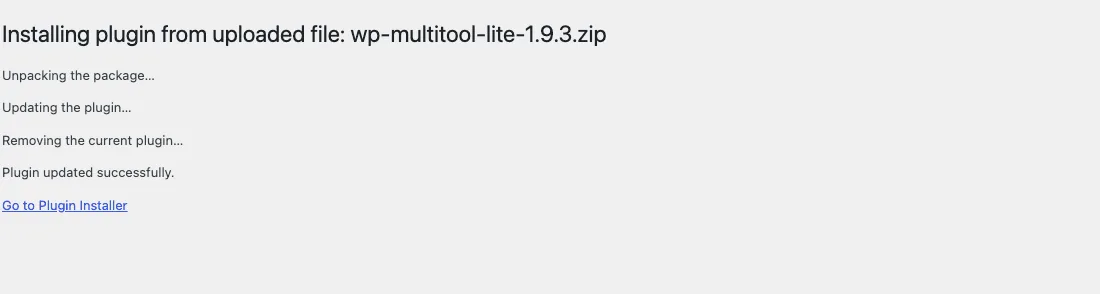
WordPress unpacks the new files, removes the old ones and reports "Plugin updated successfully". That takes a couple of seconds. The plugin stays active through the whole thing, so there's nothing to reactivate.
-
Confirm the install
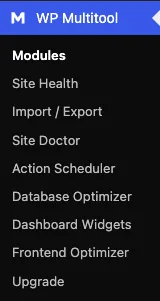
Go back to Plugins and check the version line under WP Multitool Lite. It should show the number you downloaded, and the row should still offer "Deactivate", which means the plugin is running. Open WP Multitool > Modules to confirm your enabled modules are exactly as you left them.
FAQ
Will Lite get any more updates?
No. Lite was discontinued on 2026-11-02 and is frozen at version 1.9.15 - it gets no further updates, including security updates. The install you already run keeps working as-is, and the last build stays downloadable in your Polar account.
Why does Lite not update itself like other plugins?
Updates are tied to a license key, and Lite was sold without one. The Auto Updater module checks the edition on load and stops when it sees Lite, before it registers any hooks. So there's no Updates page to visit and no update check running in the background. Every paid plan includes a license key and updates through the normal WordPress update screen.
Will I lose my settings or my data?
No. Uploading over the existing plugin replaces the plugin files only. Your settings live in the database under a single wpmultitool_options key and stay untouched, as does anything a module has logged. Deleting the plugin doesn't wipe them either - the uninstall routine deliberately leaves your data in place - but deleting is still the wrong route here. You'd have to reinstall and reactivate, and deactivating removes the MU-plugin and drop-in that WP Multitool installs. Upload over the top instead.
Do I need to deactivate the plugin first?
No. WordPress handles the swap while the plugin is active and leaves it active afterwards. Deactivating first is harmless but pointless, and it's easy to forget to switch it back on.
The upload fails with "413 Request Entity Too Large". What now?
Your web server is refusing the file before PHP ever sees it. The Lite zip is around 1.5 MB and the nginx default limit is 1 MB, so this is common on nginx hosts. Ask your host to raise client_max_body_size to 8m or more. If you see "The uploaded file exceeds the upload_max_filesize directive" instead, that's PHP, and the fix is to raise upload_max_filesize and post_max_size. Both are one-line changes any host can make.
There is no "Add Plugin" or "Upload Plugin" option in my dashboard.
Some managed hosts lock plugin installs by setting DISALLOW_FILE_MODS in wp-config.php. WordPress then hides the whole install screen and refuses uploads, and Quick Updater refuses them too. Ask your host to allow plugin installs, or upload the plugin over SFTP instead: unzip the file on your computer, then upload the wp-multitool-lite folder from it into wp-content/plugins/ and let it overwrite the existing files. Keep the folder name exactly wp-multitool-lite. WordPress identifies an active plugin by its path, so the plugin stays active and your settings stay put.
WordPress asks for FTP credentials when I click Install Now.
That screen appears when WordPress can't write to wp-content/plugins/ as the web server user, so it falls back to FTP. Entering working FTP details will complete the update. If you don't have them, ask your host to fix the file ownership on wp-content. That's the real problem, and it'll come back on every plugin update until someone fixes it.
Should I take a backup first, and what if the site breaks afterwards?
Take one. Any update can go wrong, and this plugin touches the database. A full backup from your host or a backup plugin is enough. If you have SFTP access, a copy of wp-content/plugins/wp-multitool-lite/ is the quickest insurance, because putting that folder back restores the exact version you were on. If the site errors out after the update, rename that folder over SFTP - WordPress deactivates a plugin whose files have vanished, the site comes back, and your settings survive. Then email support@wpmultitool.com with the version you upgraded from and the version you upgraded to.
I run a multisite network. Where do I upload the zip?
In Network Admin, not on the individual site. WordPress only grants the install capability to super admins on multisite, so a per-site admin won't see the upload screen at all. Go to Network Admin > Plugins > Add Plugin > Upload Plugin and follow the same steps. If WP Multitool Lite is network-activated, the update applies to every site at once.
Can I use the Quick Updater module to do this?
Yes. Quick Updater is included in Lite and enabled by default. It has no menu page of its own - it adds a drop zone to the Plugins page itself, so you drag the zip straight onto that screen instead of going through Add Plugin. Same job either way, so use whichever you prefer. You still have to download the zip from your account first.
I bought Lite with a different email and cannot sign in.
The portal only finds purchases attached to the exact address used at checkout. Check the receipt Polar sent you - the address it was delivered to is the one that works. If you no longer have access to that mailbox, email support@wpmultitool.com and I'll move the purchase over.
Is there a way to get updates again?
Upgrade to a paid plan - any plan at wpmultitool.com/pricing/ includes a license key. The key switches the Auto Updater on, and from then on updates arrive in the normal WordPress update screen like any other plugin. Your Lite settings carry over untouched. Lite owners get a $9 credit toward any paid plan - the claim form is on /lite/.
Ready to optimize your WordPress site?
Join developers using WP Multitool to debug, optimize, and maintain WordPress.
Get WP Multitool