What You Bought and Where It Lives
Polar handles the checkout and the delivery, so your files sit in the Polar customer portal rather than on wpmultitool.com. There's no password to remember - you type the email address you bought with, Polar mails you a six-character code, and you're in. What you find there depends on the edition. Lite gives you one download and nothing else, because Lite ships without license keys. Every paid edition above Lite gives you the same download plus a license key, and that key is what turns on automatic updates inside wp-admin, so after the first install you rarely need the portal again. The portal always carries the current release, which means the download you took on day one is not the file you want a year later - go back and grab it again, or let the key fetch it for you.
Step by Step
-
Work out which edition you bought
It changes what you need to do next. Lite has no license key and no automatic updates, so you come back here by hand for every new version - the walkthrough for that is at /docs/update-lite-manually/. Pro (1 site), Pro Annual, Pro Lifetime and the original Full purchase all include a key, and once that key is in place updates arrive in the normal WordPress update screen. If you can't remember which one you paid for, the Polar receipt in your inbox names the product.
-
Open the customer portal and sign in
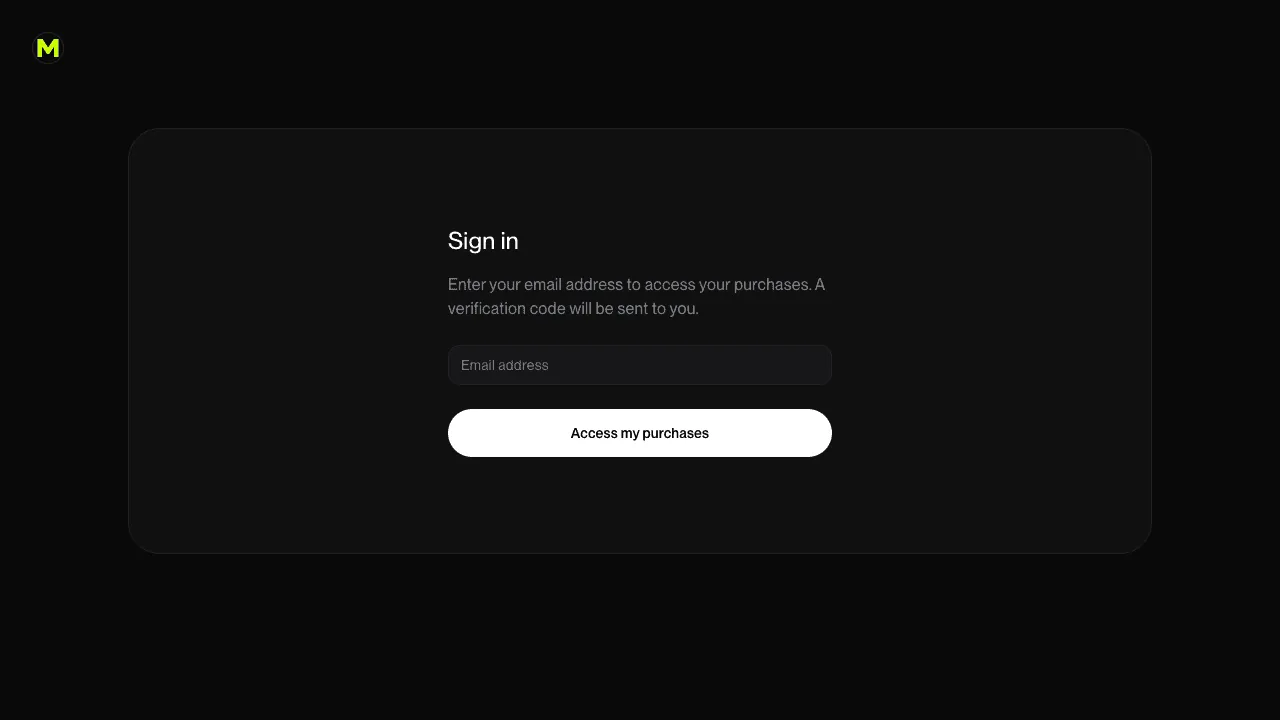
Go to polar.sh/we-got-this/portal and enter the email address you bought with. There is no password - Polar emails you a six-character verification code instead. It has to be the checkout address, otherwise the portal has nothing to show you.
-
Enter the verification code
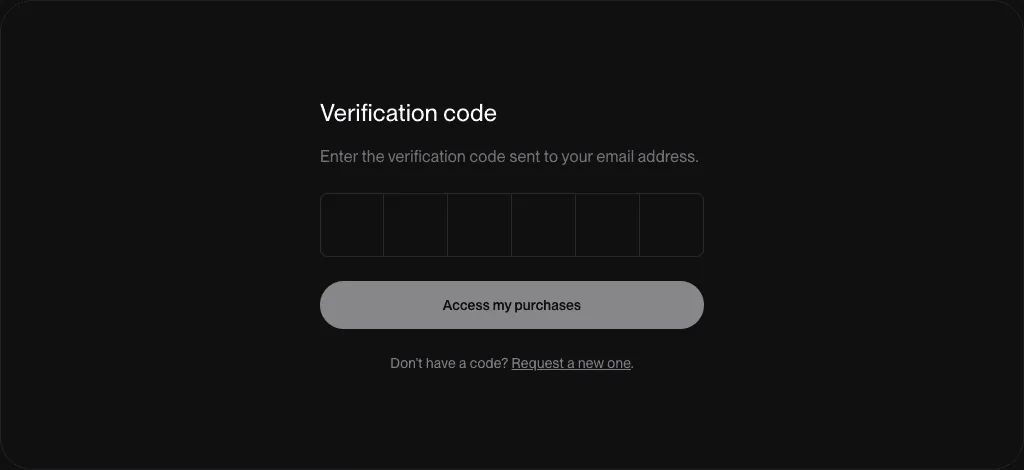
Paste the six characters from the email and click "Access my purchases". The code expires quickly, so if it bounces, request a new one and check your inbox again. Look in spam if nothing lands within a minute.
-
Download the zip from Benefit Grants
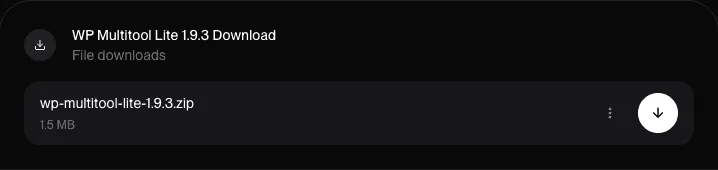
On the Overview page, scroll to Benefit Grants. Paid editions above Lite list "WP Multitool <version> Download"; Lite lists "WP Multitool Lite <version> Download". Click the download arrow on the right. The version in that title is always the current release, so it doubles as a version check - if it matches what Plugins already shows in wp-admin, you are up to date and can stop here.
-
Copy your license key
Skip this one on Lite - there is no key. On every paid edition above Lite, the key sits in that same Benefit Grants list, in its own entry next to the download. It begins with WPMTH. Copy the whole string. Treat it like a password: it is what proves your site is entitled to updates, and anyone holding it can pull them too.
-
Install the plugin
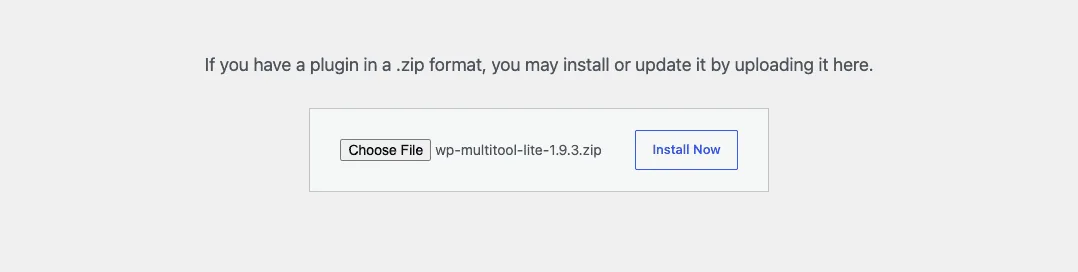
In wp-admin, go to Plugins > Add Plugin - called "Add New" before WordPress 6.4 - then Upload Plugin, pick the zip and click Install Now. Don't unzip it first. If WP Multitool is already installed, upload the new zip straight over the old copy and click "Replace current with uploaded": the plugin stays active and every setting survives. The illustrated version of this, screen by screen, is at /docs/update-lite-manually/.
-
Paste the key into WP Multitool > Updates
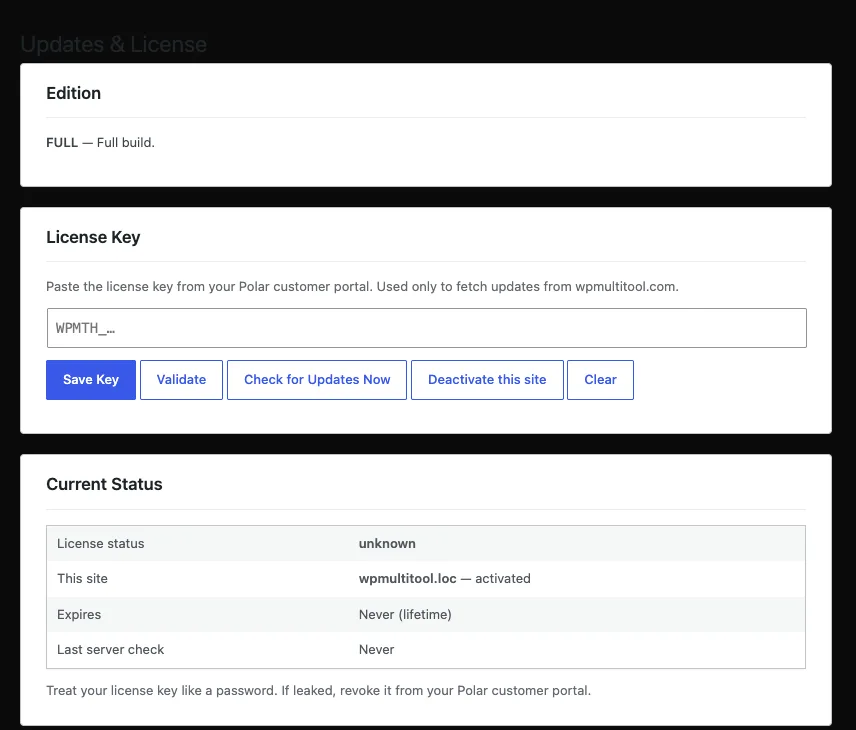
Paid editions only. In wp-admin, open WP Multitool > Updates, paste the key into the License Key field and click Save Key, then Validate. The Current Status table underneath should stop saying "unknown" and name this site as activated. Note that Pro (1 site) allows one activation at a time - if you are moving the licence to another site, click "Deactivate this site" on the old one first.
-
Confirm updates are flowing
Still on that screen, click "Check for Updates Now". Last server check should stamp the current time, and from then on new versions show up on the WordPress Plugins and Updates screens like any other plugin. That is the last time you need the portal - unless you lose the key or add another site.
FAQ
I never got the email with my download link. Now what?
You don't need it. The portal is the source of truth, and it works whether or not the delivery email arrived: go to polar.sh/we-got-this/portal, enter your checkout email and sign in with the code. Everything you bought is on the Overview page. If the sign-in code itself never arrives, check spam first, then email support@wpmultitool.com from the address you paid with.
The portal says it can't find my purchase.
Almost always the wrong email address. The portal matches on the exact address used at checkout, and if you paid through PayPal or a work account, that may not be the address you expected. The Polar receipt tells you which mailbox it was delivered to - that one works. If you no longer have access to it, email support@wpmultitool.com and I'll move the purchase to your current address.
Where exactly is the license key?
In the Benefit Grants list in the portal, as its own entry alongside the download - not inside the zip, and not in the plugin. It begins with WPMTH. It is also in the email Polar sent at purchase. Lite has no key at all, so if you bought Lite and can't find one, nothing is wrong.
Do I have to do this every time there is a new version?
On Lite, yes - it has no updater, so downloading by hand is the only route, and the step-by-step is at /docs/update-lite-manually/. On any paid edition above Lite, no. Once the key is saved and validated, the plugin checks for updates twice a day and new versions appear on the normal WordPress update screen. The portal is for the first install and for emergencies.
How many sites does my licence cover?
Pro (1 site) at $79/yr covers one activation at a time, and you move it by deactivating the old site first from WP Multitool > Updates. Pro Annual and Pro Lifetime cover unlimited sites. Lite has no key, so nothing counts activations - install it wherever you like. Full detail is on /pricing/.
My subscription lapsed. Do I lose the plugin?
No. The licence key only gates updates, nothing else - no module in the plugin checks licence status to decide whether to run. An expired key means new versions stop arriving and the portal download stops refreshing; the copy already installed keeps working exactly as it did. Renew and updates resume.
Can I download an older version?
Not from the portal - the Benefit Grants entry always carries the current release and replaces the previous file. If you need to roll back after a bad update, restore your backup of wp-content/plugins/wp-multitool/, or email support@wpmultitool.com with the version number and I'll send it. Every release is listed at /changelog/ if you're trying to work out which one you were on.
The upload fails with "413 Request Entity Too Large".
Your web server rejected the file before PHP saw it. The zip is a couple of megabytes and the nginx default limit is 1 MB, so this is common on nginx hosts. Ask your host to raise client_max_body_size to 8m or more. If the message mentions upload_max_filesize instead, that one is PHP, and the fix is raising upload_max_filesize and post_max_size. Both are one-line changes for any host.
Where do I get an invoice or receipt?
Polar is the merchant of record for every sale, so billing lives with them: the receipt was emailed at checkout, and the order in your customer portal is where to go for a copy or a proper VAT invoice. If you need something the portal won't produce, email support@wpmultitool.com with your order details and I'll sort it out.
Can I upload the plugin over SFTP instead?
Yes, and on hosts that set DISALLOW_FILE_MODS it is the only way, because WordPress hides the whole install screen. Unzip the file on your computer and upload the folder inside it into wp-content/plugins/, overwriting what's there. Keep the folder name exactly as it comes out of the zip - WordPress identifies an active plugin by its path, so an unchanged name means the plugin stays active and your settings stay put.
Ready to optimize your WordPress site?
Join developers using WP Multitool to debug, optimize, and maintain WordPress.
Get WP Multitool