Most of the mail I get about slow WordPress sites starts the same way. "My admin is so slow. I don't know what any of these plugins do. What do I click?" Today I'm releasing a one-button WordPress cleanup plugin for exactly that person. It's called Jumpstart.
(If you already have a WP Multitool license, skip to the price section. It's included for you.)
WP Multitool is my answer for the person who wants to see the slow query. It has 19 modules, each with a screen, and it tells you why a site is slow. That is the wrong shape for the person above. They want the name of the plugin to blame, a fix they can undo, and a site that still works after.
So I built a second plugin.
What it is
You install it. Go to Plugins. In the Jumpstart row there is a link that says Run.

Click it. A small dialog opens with three levels: Safe, Reversible, YOLO. One Run button. That's the whole interface. There is no menu and no settings page.
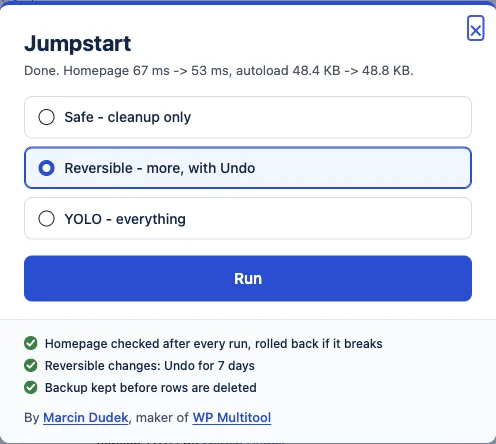
When you press Run it does four things, in this order.
- It measures first: how long your homepage takes to answer when the server fetches it as a logged-out visitor (median of three tries, on the server's own network), and how many bytes of settings WordPress loads on every page.
- It cleans up: every cleanup of the level you picked. Settings changes go first, deletions wait.
- It checks the homepage. It fetches it logged-out, compares the page structure to a fingerprint taken before the run, and if the page changed it puts the settings back on its own. The bigger deletions (old revisions, orphaned data) never start in that case.
- It measures again and prints one line.
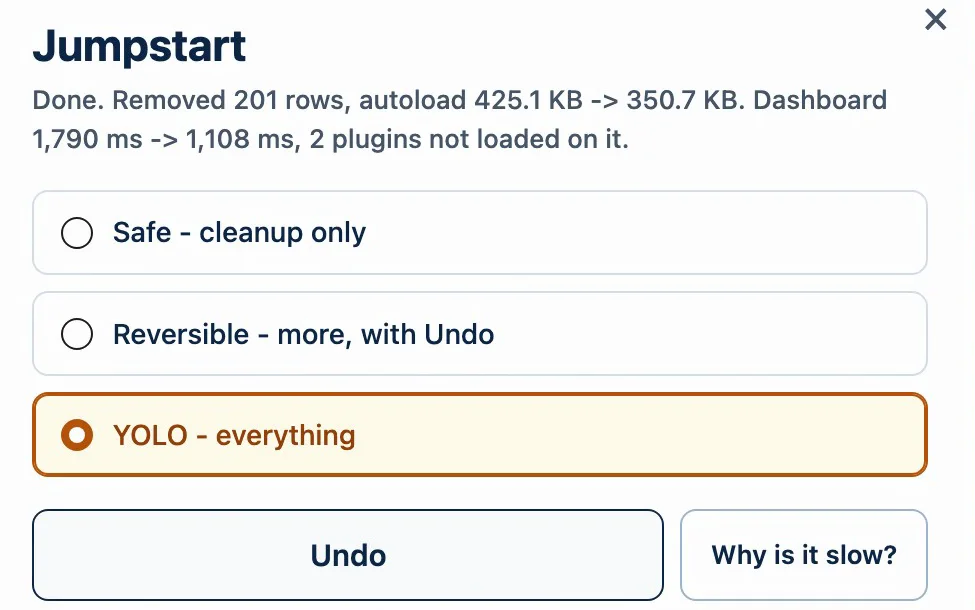
Those numbers are from my test site. On a near-empty install the same run removes a handful of rows and moves the homepage by a few milliseconds, and the line leaves the homepage time out when the difference is noise. I'd rather show you noise as noise than round it into a claim.
The three levels
Each level includes the one before it.
Safe is the smallest set: expired transients, finished background tasks older than a day, and switching off autoload for settings that inactive plugins left behind. That last one is undoable.
Reversible is the default. It adds the standard head cleanup and security switches most optimizer plugins have (13 of them, all undoable), compacts a debug.log over 1 MB with a backup, and, only after the homepage check passed, prunes old revisions to the last five and removes orphaned data with an SQL backup written first.
YOLO adds JavaScript defer and stops autoloading oversized settings (both undoable), then deletes all transients, removes orphaned cron hooks and runs OPTIMIZE TABLE. Run it when you'll look at the site right after. The homepage check doesn't run JavaScript, so a script that breaks after defer is something you'd see and it wouldn't.
On autoload: WordPress core started treating large options differently in 6.6 (the announcement on make.wordpress.org), but that applies when an option is saved. Settings that inactive plugins left behind years ago stay autoloaded until something switches them off. I wrote more about that in the wp_options autoload trap.
It leaves other optimizers alone
If another optimizer is on the site already, Jumpstart reads that plugin's own settings and leaves anything it already handles alone. If it can't tell, it leaves it too. It never writes another plugin's options.
That includes WP Multitool. Both can be active on the same site, and Jumpstart treats it like any other optimizer.
Undo
After a run the Run button becomes Undo, for 7 days. Undo puts back every setting change, skips anything you changed yourself in the meantime (and tells you how many), clears the page caches it knows about and checks the homepage again.
Deleted rows are not undone. Before every delete Jumpstart writes the rows to an SQL file, kept for 30 days, and the newest five files are always kept. Restoring from them is a manual import.
While the last run is still undoable, a new run is refused, from the dialog and from WP-CLI. Undo first, or wait until it's 7 days old. I did that on purpose: one run, one Undo, no guessing which run changed what.
What it can print
The lines you'll see most, all real strings from the plugin (the docs list the rest):
Done. Removed 201 rows, autoload 425.1 KB -> 350.7 KB. Dashboard 1,790 ms -> 1,108 ms, 2 plugins not loaded on it.The normal case, with your numbers (these are from a YOLO run on my test site). The homepage time only shows up when it changed enough to mean something.Done. The homepage looks the same to visitors.When one of the numbers couldn't be measured. It shows none rather than guess.The homepage changed for visitors, so the settings the run changed were put back.The check failed and it rolled back on its own.Done, but the homepage could not be checked as a visitor, so the steps that delete rows were held back. Check the homepage yourself.Some hosts block a site from fetching itself. Then you get the settings changes and no deletions.
There is no percentage anywhere. I'm not going to put a speed-up number on a sales page that wasn't measured on your site, and the plugin doesn't make one up either.
Why is it slow?
Version 1.1 adds a second button, Why is it slow?. It measures two pages, the homepage as a visitor gets it and your dashboard as you get it, and names the plugins that take the most time on each, in milliseconds. It changes nothing on the site.
This is what it printed on my test site, which runs about 50 active plugins:
Homepage 737 ms - Database 499 queries, 11.3%
Elementor 163.6 ms
WooCommerce 111.6 ms
Yoast SEO 52.3 ms
CoBlocks 43.5 ms
Dashboard 1,778 ms - Database 518 queries, 5.7%
OptinMonster 667.0 ms
WooCommerce 213.3 ms
Elementor 147.4 ms
Yoast SEO 125.4 ms
Each page loads seven times: two warm-up loads that don't count, then five timed ones, and every number is the median of those five. In the dialog each plugin line also carries the plugin's own one-line description, so you know what a plugin is before you go looking. I cut those off above.
For the length of the measurement it puts a small profiler file into mu-plugins that only answers requests carrying a one-time token. When the measurement ends, the file and everything it stored are removed. If the measurement gets interrupted, the file removes itself within 15 minutes.
That is as far as 1.1 went. Knowing which plugins take the dashboard's time doesn't make the dashboard any faster, so the next version got a button for it.
One click off the dashboard
Version 1.2 puts a button next to a plugin that costs your dashboard time: Don't load on the dashboard. The plugin keeps running everywhere else, the frontend and its own settings screens included. On the dashboard its menus, widgets and notices are skipped.
Right after the click Jumpstart loads the dashboard, the Plugins screen and the homepage. If any of them fails, it rolls back. Then it measures the dashboard again and shows you the new number. Load it again undoes it.
Version 1.3 adds it to YOLO. Pick YOLO, press Run, and every plugin it offers to keep off the dashboard goes in one group, with one before and after number. Load them again, or the run's Undo, switches the whole group back on.
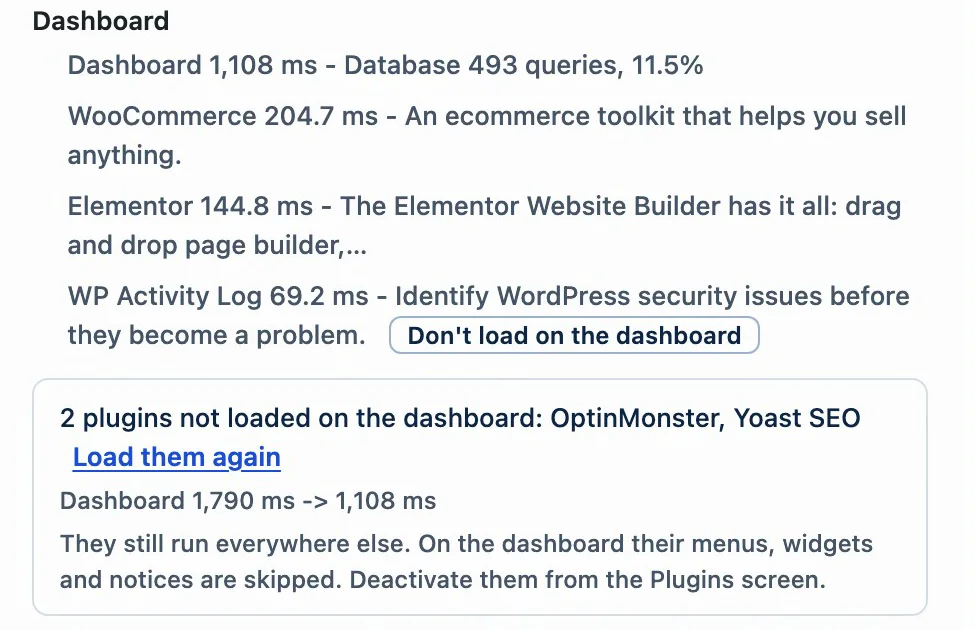
The same run as a 19-second video:
What it doesn't do
No caching, no image work, no database indexes, no wp-config.php edits, no scheduling. The cleanup checks one page, as HTML, without running JavaScript. Why is it slow? names the plugins, but it doesn't look inside them: no breakdown by hook, no slow query log.
For digging further there's WP Multitool. Once Jumpstart has named the plugin and you want to know what inside it takes the time, that's the point where the plugin profiler and the slow query log start being useful. And if it's specifically the admin that crawls, I wrote up the usual causes in why is my WordPress admin so slow.
For agencies: the CLI and the lock
There's a WP-CLI command, so it fits in a provisioning script:
wp jumpstart run --level=safe --format=json
wp jumpstart status
wp jumpstart undo --run=<id>
And a constant that pins the level on a client site, so the client can press Run without being able to pick YOLO:
define( 'JUMPSTART_MODE', 'safe' ); // safe, reversible or yoloThe dialog shows the level greyed out and the server ignores any other level. Every command is in the Jumpstart docs.
Price
$49 a year for one site, 14-day refund like everything else I sell. It doesn't need WP Multitool. For more than one site, WP Multitool Pro Annual covers unlimited sites, and it's on the pricing page.
If you already have a WP Multitool license: Jumpstart is included. I'm emailing each of you a personal code that takes it to $0, at checkout and at every renewal. If it didn't reach you, reply to any mail from me or write to support@wpmultitool.com.
I'm curious what the line says on sites that aren't mine. If you run it, send me yours.